





If you frequently use one or more order types, you can add custom action buttons to the Order Ticket for each order type instead of selecting it from the order type selector. Custom action buttons can be added for:
- Manual fills for care orders
- Exchange order types
- TT order types
- User-defined Order Ticket Algos
- User-defined Synthetic Order Algos
- Time-in-Force (TIF) order restrictions
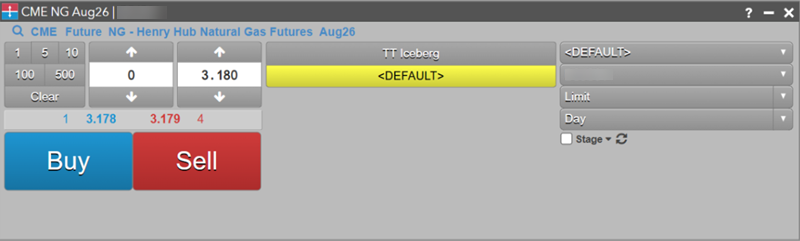
For example, if you frequently submit Stop Limit orders and TT Time Sliced orders and use a Good-Til-Cancel TIF, you can add custom action buttons as shown below.
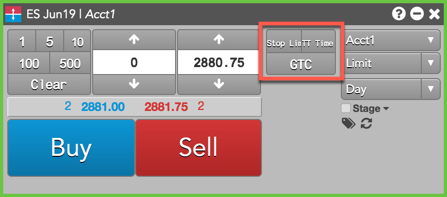
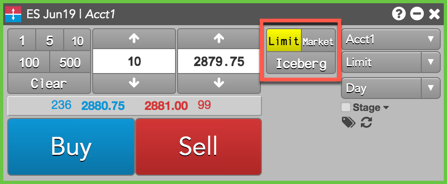
When you click a custom order type button, it automatically sets the order type or TIF. The button remains active until you unselect it, so you can quickly place multiple orders without having to select an order type or TIF for each time.
To add custom action buttons to the Order Ticket:
-
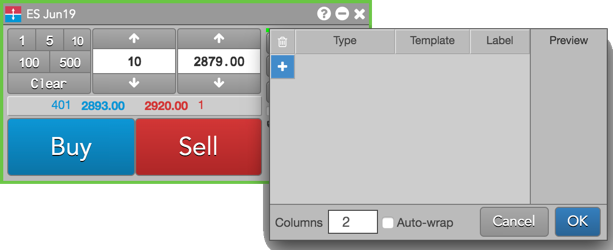
Right-click in the Order Ticket and select Edit custom action buttons.

The custom action buttons dialog box appears.
-
Click “+” and click the drop-down arrow in the Type field to select an order type, algo, or TIF.
Tip: When adding a manual fill button to the Order Ticket for a care order, scroll to the bottom of the order types list to select “Manual Fill”.
-
If you have created order templates for a TT Order Type or custom algo, click Template and select the template to assign to the button.
When the button is clicked, the order will automatically use the values defined in the template, and will not display the fly-out.
- Optionally, click the Label field to customize the button name.
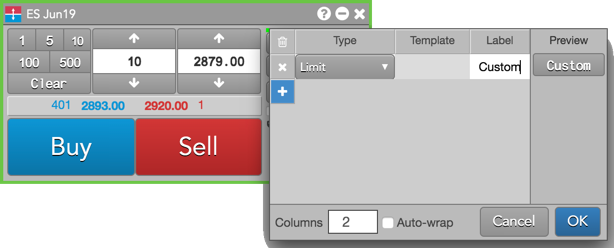
- Click “+” to add additional buttons as needed.
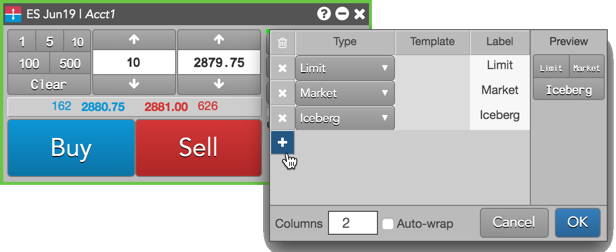
Note: Up to 50 custom actions buttons can be configured on an order entry widget.
- Enter a value in the Columns field to set the number of columns to use for displaying the buttons.
- To automatically wrap buttons based on the length of the text, check the Auto-wrap checkbox.
- Verify the display of the buttons in the Preview column and click OK if you want to add the button configuration as it appears.
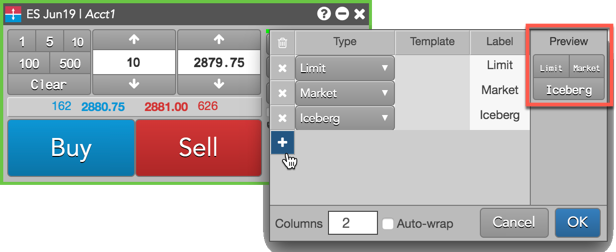
The custom buttons appear in the Order Ticket.
Adjusting the Custom Action Button Display
Reorder the vertical display of custom action buttons via left mouse drag-n-drop in the configuration dialog window.
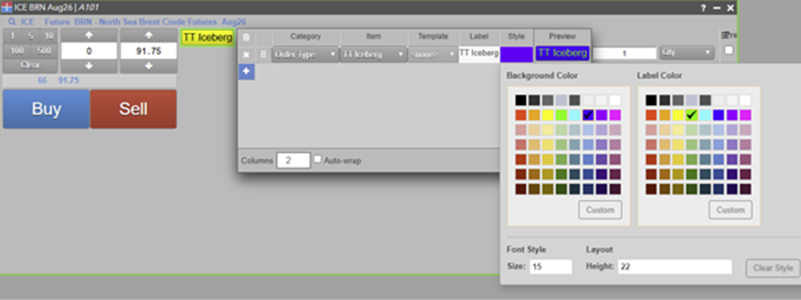
Select user defined colors for custom action buttons via the style tab in the configuration dialog window.
Adjust font size and layout height via the style tab in the configuration dialog window.
Resizing custom action buttons
You can manually resize the width of custom action buttons and order parameter drop-down controls by dragging with the left mouse button. After adjusting the size to your preference, you can save it as your default setting.