







To set account position limits:
- In the left navigation panel, click Accounts and select an account in the data grid.
- Click the Limits tab.
- In the Settings section, click Apply Limits to enable limit checking for the account or
user.
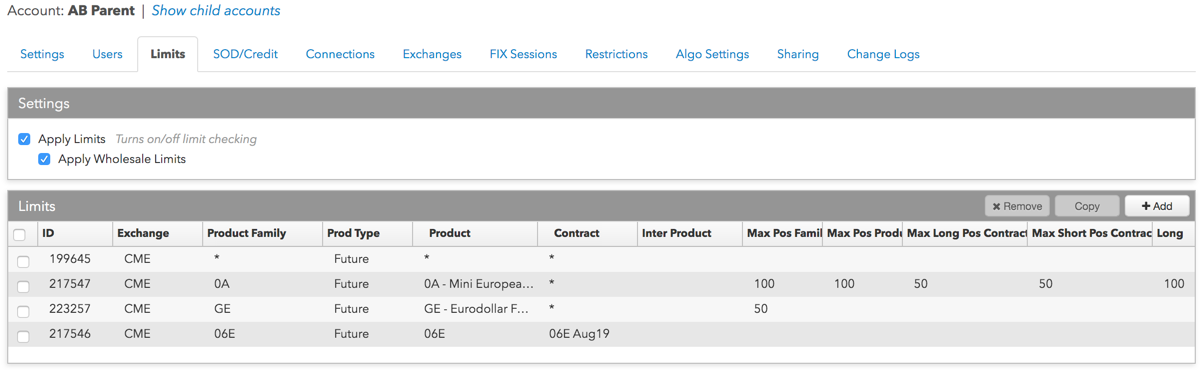
Note: If Apply Limits is checked, you must define product or contract limits for each product or contract that the user, parent account or child account is allowed to trade.
Optionally, you can apply risk limits (e.g., Max Order Qty, Price Reasonability) to wholesale orders by checking the Apply Wholesale Limits checkbox. When this checkbox is checked, then the limits configured in the wholesale specific fields are applied.
Note: Position limits do not apply to OTC/wholesale transactions.
- In the Limits section, click +Add to create a new risk limit, or select an existing limit in the
Limits section.
If you select an existing limit, you can copy product limits within the selected user’s or account’s limit tab by clicking the Copy button.
If you click +Add to create a new risk limit, select the Exchange, Product Family, Product Type, Product, and/or Contract in the New Limit screen and click Add. By default, the risk limit will apply to all exchanges, product families, product types, products, and contracts.

After you add or copy the new limit, it’s selected in the data grid and its applicable risk limit settings are displayed.
- Set the following risk limits as needed:
-
General
- Enforce energy limits in Contracts — Calculates risk limits based on contracts instead of flow for energy products. When unchecked, risk is calculated in flow. Refer to Risk calculations for trading in flow.
- Max position family (net): Sets the account to an overall maximum long or short position limit per product family. A product family includes all options with a shared underlying futures symbol. This allows you to set a single risk limit for all monthly, weekly, or daily options products for an underlying future. For an example, refer to Position limits examples.
- Max position product (net): Limits an account to an overall maximum long or short position per product. If a Max position familiy (net) limit is set, then a position limit per product in the same family should be less than the family limit. For an example, refer to Position limits examples.
- Maximum long position per contract: Limits an account to an overall maximum long position per contract for a product.
- Maximum short position per contract: Limits an account to an overall maximum short position per contract for a product.
- Maximum long position (gross): Limits the worst case total of long contracts per product. The sum of the long positions plus working buy orders in all contracts cannot exceed this limit. For example, if the Max long position limit is four, and there is a long position of two in one contract and a working buy of two in another contract, then no more buy orders can be placed.
- Maximum short position (gross): Limits the worst case total of short contracts per product. The sum of the short positions plus working sell orders in all contracts cannot exceed this limit. For example, if the Maximum short position limit is four, and there is a short position of two in one contract and a working sell of two in another contract, then no more sell orders can be placed.
- Max child slice per % * average trade size — Ensures that a child order quantity does
not exceed a set percentage of the historical average trade size per product. TT calculates average
trade size as: volume/number of trades for the previous 21 days. TT enforces the “max participation
rate” (i.e., maximum order quantity percentage of the average trade size) before the child order is
submitted. If a child order would exceed the rate based on the percentage set by this parameter, the
parent order will fail. Enter a value from 1-100.
Example: For a given instrument:
- The average trade size over the last 21 days is “200”.
- Max child slice per % * average trade size is set to “30” percent.
- The “Max Participation Rate” is calculated when the algo starts: 0.3 * 200 = 60
- Based on the calculated rate, submitted order quantities may not exceed “60”.
- Market Depth Check — Sets the number of price levels of market depth allowed for
filling an order. Enter a value of 0-10.
If more than 10 levels of depth are visible in TT, or if the exchange actually has more levels of depth than what they provide to TT, you can define whether to reject or allow an order from consuming additional levels of depth over your set limit. Check the Reject orders… option to reject orders to get filled at additional price levels above the number you set
Note: When this setting is enabled, client applications such as the trading interface and automated tools will likely be required to subscribe to additional market data, which can have an impact on performance.
- Trade out allowed: When enabled, allows the maximum order quantity, maximum long/short position, and credit limits to be exceeded in order to flatten the position in a contract. Can be set for the account.
The following section appears for a single contract, spreads, or strategies.

Enforce energy limits in Contracts — Calculates risk limits based on contracts instead of flow for energy products. When unchecked, risk is calculated in flow. Refer to Risk calculations for trading in flow.
The following section appears for an account only, and appears if applying risk limits to all contracts for a product.

-
- Set limits for Outrights as needed.
Note: The following section appears if applying risk limits to a single contract. Refer to the following step to view settings for applying risk limits to all contracts.
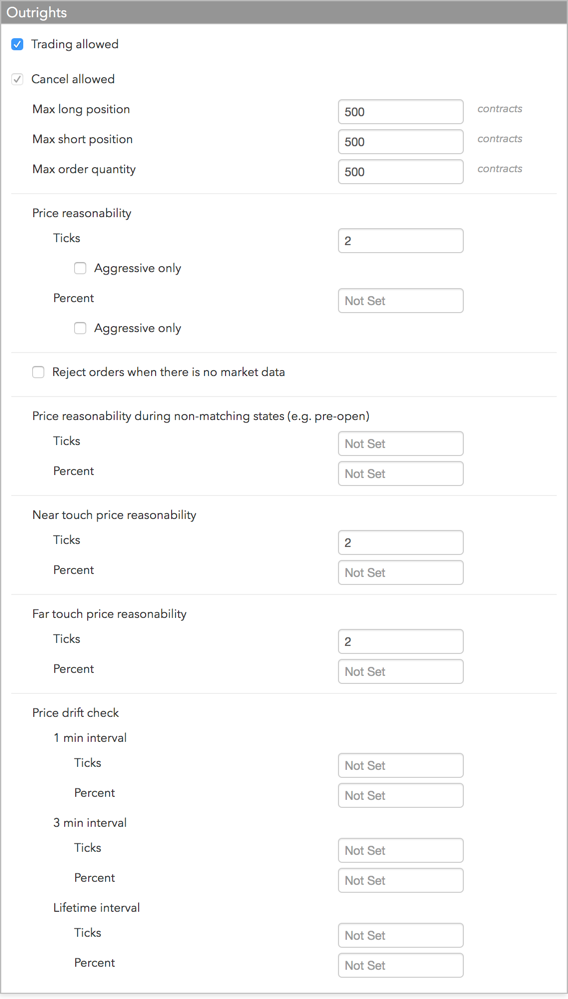
- Trading Allowed: Specifies whether outrights can be traded for the selected contract.
- Cancel allowed: Specifies whether orders for these products can be canceled. If you plan to restrict trading in this product but allow only order cancellations, leave this option checked.
- Max long position: Limits an account or user to a maximum long position per contract selected. For example, if this limit is set to 5 for the GE March contract, and an account or user is long 4 GE March contracts, then a Buy order greater than 1 would be rejected as it could potentially result in a long position greater than 5. This field does not apply to user-level risk.
- Max short position: Limits an account or user to a maximum short position per contract selected. For example, if this limit is set to 5 for the GE March contract, and an account or user is short 4 GE March contracts, then a Sell order greater than 1 would be rejected as it could potentially result in a short position greater than 5. This field does not apply to user-level risk.
- Maximum order quantity: Specifies a limit on the maximum individual order size that can be entered for the contract. This setting overrides the max order qty setting that might exist at the product or exchange level.
- Price reasonability: Determines how far from the market price a user may enter an
order for the contract. You can set a number of ticks away from the market using the Ticks
field, and set a percentage away from the current price using the Percent
field. If you only want to enforce this setting for buy orders above the limit and sell orders below the
market, check the Aggressive only option. This setting overrides the price reasonability setting
that might exist at the product or exchange level.
Note: The Price Reasonability settings apply only to matching states (e.g, Open Trading) at the exchange and do not include Market orders. To apply price controls during non-matching states, you must configure the separate Price Reasonability during non-matching states (e.g. pre-open) settings.
- Reject orders when there is no market data: To reject orders when there is no market data regardless of whether or not the market is in a matching or non-matching state, check this option. By default, orders are allowed when there is no market data.
-
Price reasonability (ticks) during non-matching states (e.g., pre-open): Check this setting to apply price reasonability during non-matching exchange states. When applied, the price check uses the indicative open price as the market price, otherwise, the price check uses the first available price from the last/close or settle, in that order. If none of these prices exist, then the algorithm assumes there is no market data at all, and allows or rejects the order based on the Reject orders when there is no market data option.
You can set a number of ticks away from the market using the Ticks field, and set a percentage away from the current price using the Percent field.
- Near touch price reasonability — Allows orders to be placed a set number of ticks or percentage above the best Bid or below the best Ask. For examples, refer to Advanced Pre-trade Price Controls.
- Far touch price reasonability — Allows orders to be placed a set number of ticks or percentage above the best Ask or below the best Bid. For examples, refer to Advanced Pre-trade Price Controls.
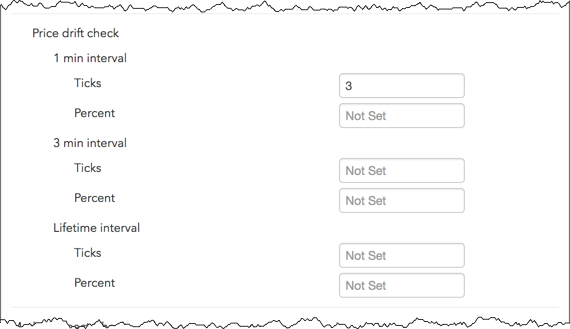
- Price drift check — Set one or both of the following price drift parameters for each interval as needed:
- Ticks: Constrains order entry by a set number of price ticks over a specified time interval. This setting applies to the price of the earliest submitted TT Iceberg or TT Time Sliced child order in the interval. Enter a value to enable this price drift check, or remove the value to disable the check (Not set).
- Percent: Constrains order entry by a percentage price move over a specified time interval. This setting applies to the price of the earliest submitted TT Iceberg or TT Time Sliced child order in the interval. Enter a value to enable this price drift check, or remove the value to disable the check (Not set).
The number of ticks and/or percentage can be set for one, two, or all three of the following intervals per account:
- 1 min interval — Price constraints are applied to the new order based on the price of the earliest order submitted within a rolling 1 minute window.
- 3 min interval — Price constraints are applied to the new order based on the price of the earliest order submitted within a rolling 3 minute window.
- Lifetime — Price constraints are applied to the new order based on the price of the initial order submitted.

- Set limits for Outrights (all contracts) as needed.
Note: The following section appears if applying risk limits to all contracts for a product. Refer to the previous step to view settings for applying risk limits to a single contract.
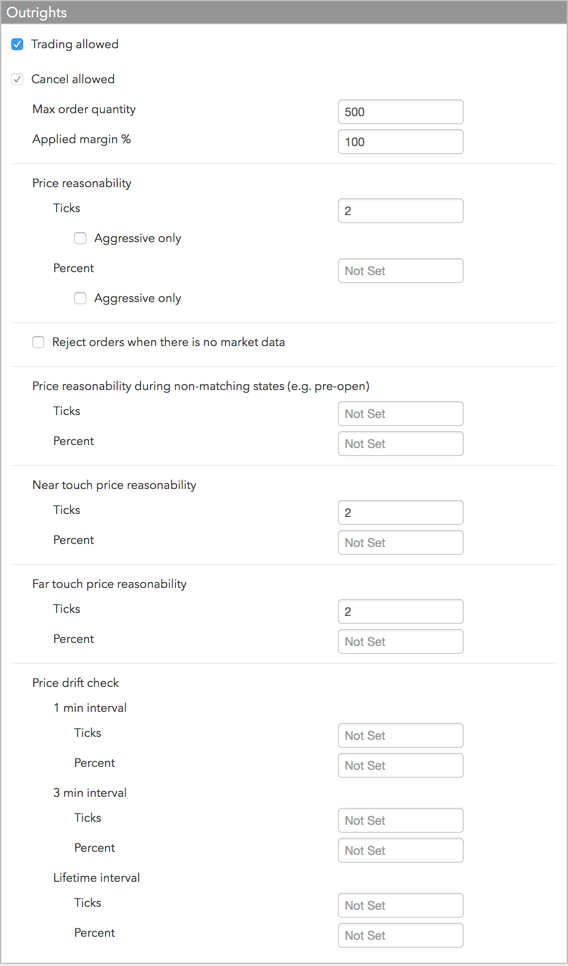
- Trading Allowed: Specifies whether outrights can be traded for the selected product (e.g., the Future, Option, Stock, Bond, or Energy product). If you plan to restrict trading in this product but allow trading for specific contracts for this product, leave this option unchecked.
- Cancel allowed: Specifies whether orders for these products can be canceled. If you plan to restrict trading in this product but allow only order cancellations, leave this option checked.
- Maximum order quantity: Specifies a limit on the maximum individual order size that can be entered for the outrights of a spread or strategy for a particular product, product type, or contract.
- Applied margin %: Specifies a percentage above or below the margin that a trader must have to trade the product. In other words, applied margin increases or decreases the margin requirement when calculating risk limits. Setting this to zero removes margin requirements for this product/contract.
- Price reasonability: Determines how far from the market price a user may enter an order for the
outright. You can set a number of ticks away from the market using the Ticks
field, and set a percentage away from the current price using the Percent
field. If you only want to enforce this setting for buy orders above the limit and sell orders below the
market, check the
Aggressive only option.
Note: The Price Reasonability settings apply only to matching states (e.g, Open Trading) at the exchange and do not include Market orders. To apply price controls during non-matching states, you must configure the separate Price Reasonability during non-matching states (e.g. pre-open) settings.
- Reject orders when there is no market data: To reject orders when there is no market data regardless of whether or not the market is in a matching or non-matching state, check this option. By default, orders are allowed when there is no market data.
-
Price reasonability (ticks) during non-matching states (e.g., pre-open): Check this setting to apply price reasonability during non-matching exchange states. When applied, the price check uses the indicative open price as the market price, otherwise, the price check uses the first available price from the last/close or settle, in that order. If none of these prices exist, then the algorithm assumes there is no market data at all, and allows or rejects the order based on the Reject orders when there is no market data option.
You can set a number of ticks away from the market using the Ticks field, and set a percentage away from the current price using the Percent field.
- Near touch price reasonability — Allows orders to be placed a set number of ticks or percentage above the best Bid or below the best Ask. For examples, refer to Advanced Pre-trade Price Controls.
- Far touch price reasonability — Allows orders to be placed a set number of ticks or percentage above the best Ask or below the best Bid. For examples, refer to Advanced Pre-trade Price Controls.
- Price drift check — Set one or both of the following price drift parameters for each interval as needed:
- Ticks: Constrains order entry by a set number of price ticks over a specified time interval. This setting applies to the price of the earliest submitted TT Iceberg or TT Time Sliced child order in the interval. Enter a value to enable this price drift check, or remove the value to disable the check (Not set).
- Percent: Constrains order entry by a percentage price move over a specified time interval. This setting applies to the price of the earliest submitted TT Iceberg or TT Time Sliced child order in the interval. Enter a value to enable this price drift check, or remove the value to disable the check (Not set).
The number of ticks and/or percentage can be set for one, two, or all three of the following intervals per account:
- 1 min interval — Price constraints are applied to the new order based on the price of the earliest order submitted within a rolling 1 minute window.
- 3 min interval — Price constraints are applied to the new order based on the price of the earliest order submitted within a rolling 3 minute window.
- Lifetime — Price constraints are applied to the new order based on the price of the initial order submitted.

- Set limits for Spreads/Strategies as needed.

- Trading Allowed: Specifies whether spreads and strategies for the product can be traded. If you plan to restrict trading in this product but allow trading for specific contracts for this product, leave this option unchecked.
- Cancel allowed: Specifies whether orders for these products can be canceled. If you plan to restrict trading in this product but allow only order cancellations, leave this option checked.
- Maximum order quantity: Specifies a limit on the maximum individual order size that can be entered for the spread/strategy for a particular product, product type, or contract.
- Applied margin (%): Specifies a percentage above or below the margin that a trader must have to trade the spread/strategy. In other words, applied margin increases or decreases the margin requirement when calculating risk limits. Setting this to zero removes margin requirements for this product/contract.
- Price reasonability: Determines how far from the market price a user may enter an order for the
spread/strategy. You can set a number of ticks away from the market using the Ticks
field, and set a percentage away from the current price using the Percent
field. If you only want to enforce this setting for buy orders above the limit and sell orders below the
market, check the Aggressive only option.
Note: The Price Reasonability settings apply only to matching states (e.g, Open Trading) at the exchange and do not include Market orders. To apply price controls during non-matching states, you must configure the separate Price Reasonability during non-matching states (e.g. pre-open) settings.
- Reject orders when there is no market data: To reject orders when there is no market data regardless of whether or not the market is in a matching or non-matching state, check this option. By default, orders are allowed when there is no market data.
- Price reasonability (ticks) during non-matching states (e.g., pre-open): Check this setting to
apply price reasonability during non-matching exchange states. When applied, the price check uses the
indicative open price as the market price, otherwise, the price check uses the first available price
from the last/close or settle, in that order. If none of these prices exist, then the algorithm assumes
there is no market data at all, and allows or rejects the order based on the Reject orders when there
is no market data option.
You can set a number of ticks away from the market using the Ticks field, and set a percentage away from the current price using the Percent field.
- Near touch price reasonability — Allows orders to be placed a set number of ticks or percentage above the best Bid or below the best Ask. For examples, refer to Advanced Pre-trade Price Controls.
- Far touch price reasonability — Allows orders to be placed a set number of ticks or percentage above the best Ask or below the best Bid. For examples, refer to Advanced Pre-trade Price Controls.
- Price drift check — Set one or both of the following price drift parameters for each interval as needed:
- Ticks: Constrains order entry by a set number of price ticks over a specified time interval. This setting applies to the price of the earliest submitted TT Iceberg or TT Time Sliced child order in the interval. Enter a value to enable this price drift check, or remove the value to disable the check (Not set).
- Percent: Constrains order entry by a percentage price move over a specified time interval. This setting applies to the price of the earliest submitted TT Iceberg or TT Time Sliced child order in the interval. Enter a value to enable this price drift check, or remove the value to disable the check (Not set).
The number of ticks and/or percentage can be set for one, two, or all three of the following intervals per account:
- 1 min interval — Price constraints are applied to the new order based on the price of the earliest order submitted within a rolling 1 minute window.
- 3 min interval — Price constraints are applied to the new order based on the price of the earliest order submitted within a rolling 3 minute window.
- Lifetime — Price constraints are applied to the new order based on the price of the initial order submitted.
- Set limits for Inter-product spread/strategies as needed.

Note: You can create a product limit for the interproduct spread or strategy that allows or prevents trading, sets the maximum order size, and sets price reasonability. However, to apply position limits, you must create limits for each outright leg of the spread/strategy. For example, interproduct spread ZI|OZI requires a position limit for the ZI Future and a position limit for the OZI Option.
- Trading Allowed: Specifies whether the selected interproduct spreads or strategies can be traded.
- Cancel allowed: Specifies whether orders for these products can be canceled. If you plan to restrict trading in this product but allow only order cancellations, leave this option checked.
- Maximum order quantity: Specifies a limit on the maximum individual order size that can be entered for the interproduct spread or strategy. This setting overrides the maximum order quantity setting that might exist at the product or exchange level.
- Price reasonability: Determines how far from the market price a user may enter an order (in
ticks) for the contract. You can set a number of ticks away from the market using the
Ticks field, and set a percentage away from the current price using the
Percent field. If you only want to enforce this setting for buy orders above the limit
and sell orders below the market, check the Aggressive only option. This setting overrides the
price reasonability setting that might exist at the product or exchange level.
Note: The Price Reasonability settings apply only to matching states (e.g, Open Trading) at the exchange and do not include Market orders. To apply price controls during non-matching states, you must configure the separate Price Reasonability during non-matching states (e.g. pre-open) settings.
- Reject orders when there is no market data: To reject orders when there is no market data regardless of whether or not the market is in a matching or non-matching state, check this option. By default, orders are allowed when there is no market data.
- Price reasonability (ticks) during non-matching states (e.g., pre-open): Check this setting to
apply price reasonability during non-matching exchange states. When applied, the price check uses the
indicative open price as the market price, otherwise, the price check uses the first available price
from the last/close or settle, in that order. If none of these prices exist, then the algorithm assumes
there is no market data at all, and allows or rejects the order based on the Reject orders when there
is no market data option.
You can set a number of ticks away from the market using the Ticks field, and set a percentage away from the current price using the Percent field.
- Near touch price reasonability — Allows orders to be placed a set number of ticks or percentage above the best Bid or below the best Ask. For examples, refer to Advanced Pre-trade Price Controls.
- Far touch price reasonability — Allows orders to be placed a set number of ticks or percentage above the best Ask or below the best Bid. For examples, refer to Advanced Pre-trade Price Controls.
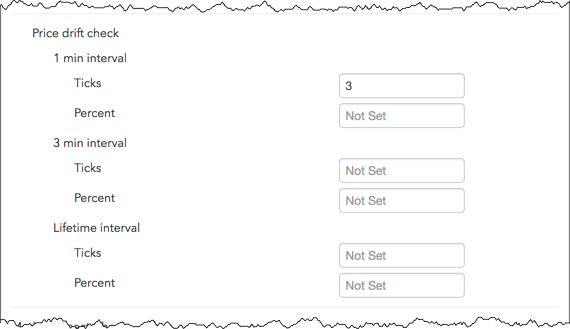
- Price drift check — Set one or both of the following price drift parameters for each interval as needed:
- Ticks: Constrains order entry by a set number of price ticks over a specified time interval. This setting applies to the price of the earliest submitted TT Iceberg or TT Time Sliced child order in the interval. Enter a value to enable this price drift check, or remove the value to disable the check (Not set).
- Percent: Constrains order entry by a percentage price move over a specified time interval. This setting applies to the price of the earliest submitted TT Iceberg or TT Time Sliced child order in the interval. Enter a value to enable this price drift check, or remove the value to disable the check (Not set).
The number of ticks and/or percentage can be set for one, two, or all three of the following intervals per account:
- 1 min interval — Price constraints are applied to the new order based on the price of the earliest order submitted within a rolling 1 minute window.
- 3 min interval — Price constraints are applied to the new order based on the price of the earliest order submitted within a rolling 3 minute window.
- Lifetime — Price constraints are applied to the new order based on the price of the initial order submitted.
- Set limits for Wholesale Outrights as needed.

- Trading Allowed: Specifies whether spreads and strategies for the product can be traded. If you plan to restrict trading in this product but allow trading for specific contracts for this product, leave this option unchecked.
- Cancel allowed: Specifies whether orders for these products can be canceled. If you plan to restrict trading in this product but allow only order cancellations, leave this option checked.
- Max order quantity: Specifies a limit on the maximum individual order size that can be entered for the spread/strategy for a particular product, product type, or contract.
- Price reasonability: Determines how far from the market price a user may enter an order for the spread/strategy. You can set a number of ticks away from the market using the Ticks field, and set a percentage away from the current price using the Percent field. If you only want to enforce this setting for buy orders above the limit and sell orders below the market, check the Aggressive only option.
- Price reasonability (ticks) during non-matching states (e.g., pre-open): Check this setting to apply price reasonability during non-matching exchange states. When applied, the price check uses the indicative open price as the market price, otherwise, the price check uses the first available price from the last/close or settle, in that order. If none of these prices exist, then the algorithm assumes there is no market data at all, and allows or rejects the order based on the Reject orders when there is no market data option.
You can set a number of ticks away from the market using the Ticks field, and set a percentage away from the current price using the Percent field.
- Set limits for Wholesale Spreads/Strategies as needed.
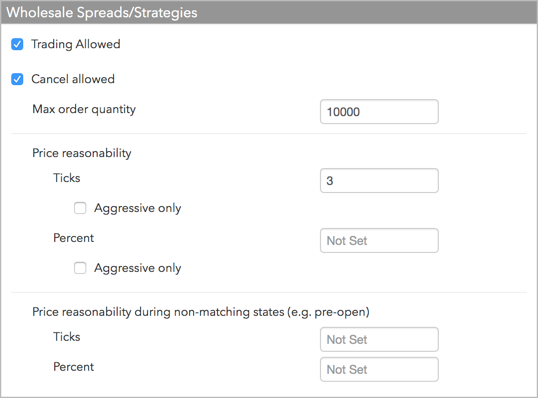
- Trading Allowed: Specifies whether spreads and strategies for the product can be traded. If you plan to restrict trading in this product but allow trading for specific contracts for this product, leave this option unchecked.
- Cancel allowed: Specifies whether orders for these products can be canceled. If you plan to restrict trading in this product but allow only order cancellations, leave this option checked.
- Max order quantity: Specifies a limit on the maximum individual order size that can be entered for the spread/strategy for a particular product, product type, or contract.
- Price reasonability: Determines how far from the market price a user may enter an order for the spread/strategy. You can set a number of ticks away from the market using the Ticks field, and set a percentage away from the current price using the Percent field. If you only want to enforce this setting for buy orders above the limit and sell orders below the market, check the Aggressive only option.
- Price reasonability (ticks) during non-matching states (e.g., pre-open): Check this setting to apply price reasonability during non-matching exchange states. When applied, the price check uses the indicative open price as the market price, otherwise, the price check uses the first available price from the last/close or settle, in that order. If none of these prices exist, then the algorithm assumes there is no market data at all, and allows or rejects the order based on the Reject orders when there is no market data option.
You can set a number of ticks away from the market using the Ticks field, and set a percentage away from the current price using the Percent field.
- To remove a user’s or account’s product limit, select the limit in the Limits section and click Remove.
- Click Save Changes.