







You can zoom a widget between 50% and 150% percent of the default widget view using a slider control. Based on the widget, zooming can either:
- Scale the contents of a widget
- Change the size of a widget
To scale the contents of a widget, such as to make more columns visible:
-
Right-click the widget’s title bar to open its Context menu; then select Zoom.
The Zoom slider appears under the title bar.
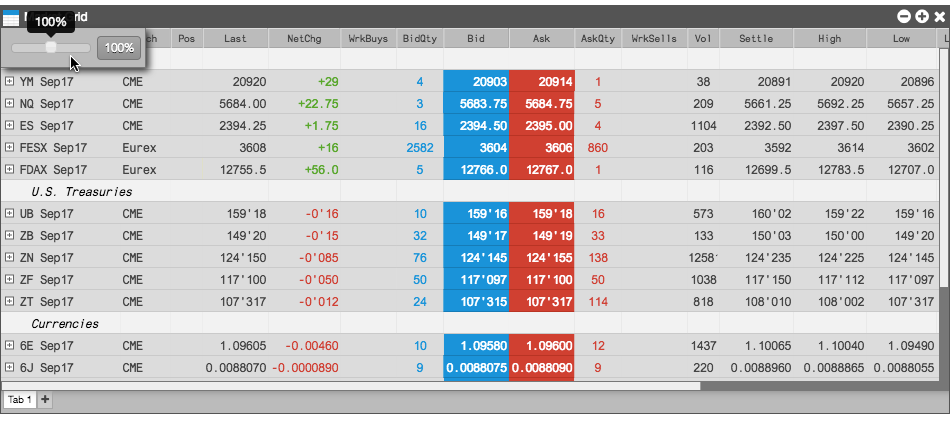
-
Drag the slider left until all of the columns are visible. Alternatively, you could drag the slider right to show less of the content at a larger size.
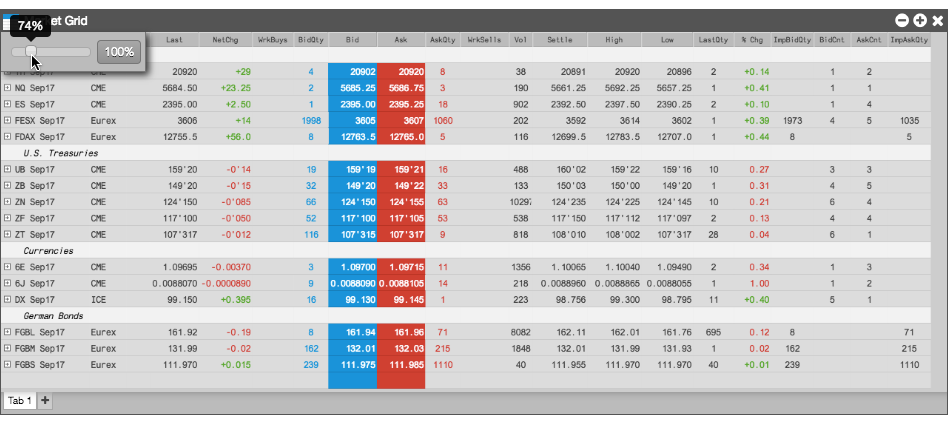
You can click 100% to return to the standard view.
-
Click anywhere in the widget or workspace to hide the Zoom slider.
To enlarge or reduce the size of a widget:
-
Right-click the widget’s title bar to open its Context menu; then select Zoom.
The Zoom slider appears under the title bar.
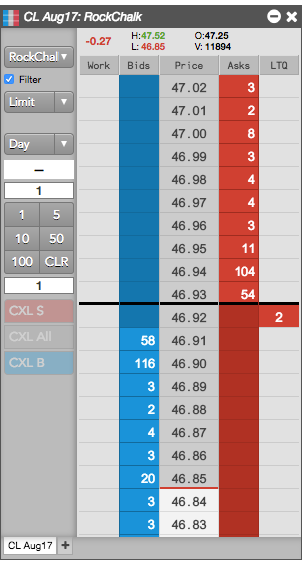
-
Drag the slider left or right to the desired zoom percentage.
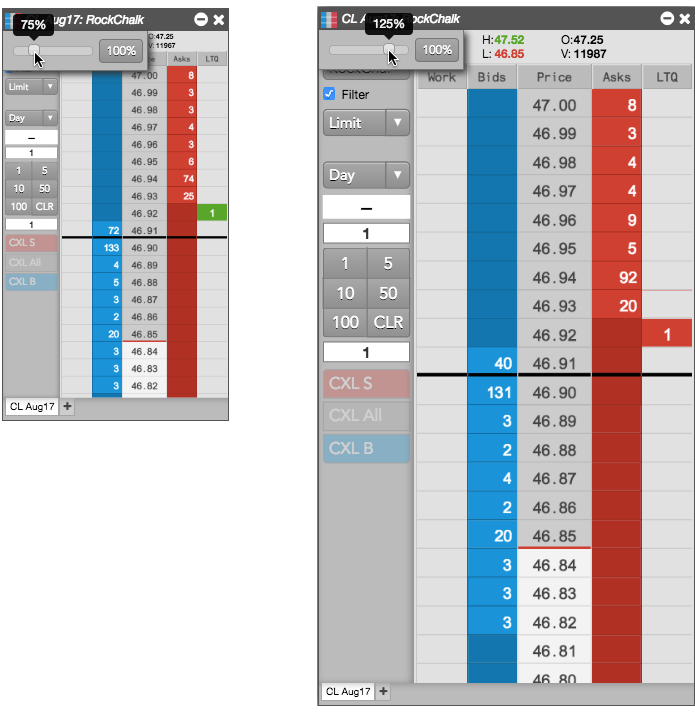
You can click 100% to return to the standard view.
-
Click anywhere in the widget or workspace to hide the Zoom slider.