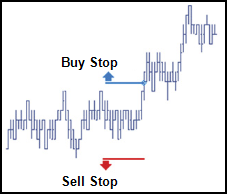
TT Stop is an order that is triggered when the market has reached or penetrated a specified price in the market.
Stop triggers are typically set worse than current market prices, which means that Buy Stops are placed above the
current last traded price, while Sell Stops are placed below the last traded price.
Note: TT Stop orders trigger if the price is worse than trigger price. When this
occurs, TT Stop ignores any configured quantity check.
Stop orders in place for the same product at the same trigger price (for the same trader or multiple traders),
process in a FIFO (first in, first out) order.
Behaviors
The following examples illustrate how you can configure a TT Stop order with different behaviors for the child and
parent orders. Also, each example shows how the order will appear in MD Trader.
Triggering a TT Stop order at a specific price level
Using a basic TT Stop lets you set the worst price at which you will execute a trade. A TT Stop order is always
placed on the opposite side of the market.
The following example shows how you can flatten a 20-contract short position in the CME 6E Sep19 contract with a
Limit order only if the market moves away and a trade occurs four ticks away from the inside market when you place
the order. In this case, you would enter a TT Stop order as follows:
From MD Trader or an Order Ticket, set the order quantity to 20.
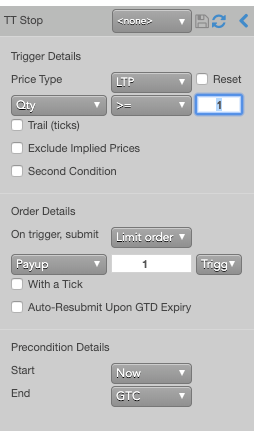
Select TT Stop from the order type dropdown to display the flyout.
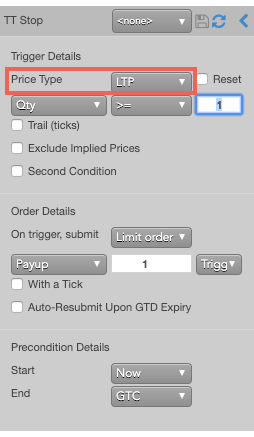
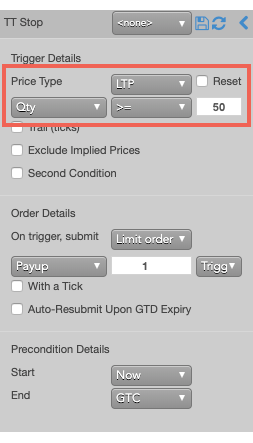
Because you want to trigger the TT Stop order if any trade occurs at a specified price level, select
LTP from the Price Type dropdown.
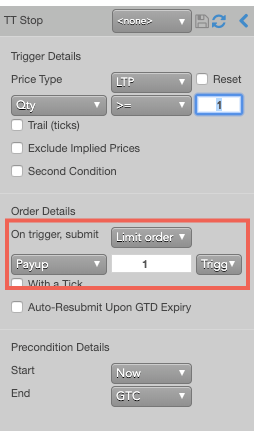
By default, a TT Stop order submits a Limit order with a one-tick payup from the trigger price. This behavior is
acceptable in this case, so verify the settings.
Hover the mouse over a price. Notice that the cursor changes to for an invalid price on the same side and to for a
valid price on the opposite side.
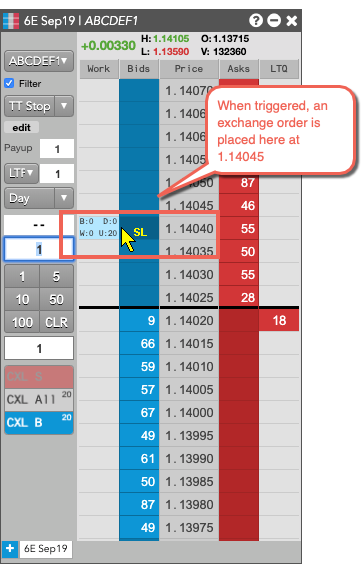
If you placed a Buy order at 1.14040 in MD Trader, the TT Stop parent order would resemble the following.
In this scenario, when a trade occurs at 1.14040, the TT Stop parent order will submit a 20-lot Buy child exchange
order at 1.14045.
Setting a liquidity-based trigger at a specific price level
In addition to setting TT Stop orders that trigger at a specific price level, you can also include a check for the
available quantity. When the desired price level is reached, the TT Stop parent order will enter its child order
only if the desired quantity is also available at that price. Specifying an available quantity can increase the
chances that the child order will be filled quickly.
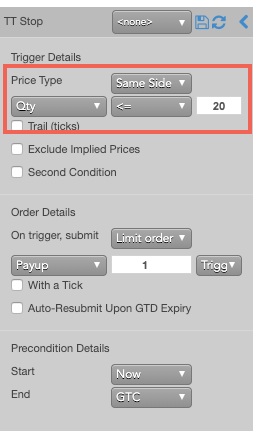
The following example creates a TT Stop order that only triggers if the available quantity on the same side of the
market as your selected price is less than or equal to 20. In this example, you would configure the order as
follows.
From the Price Type dropdown, select Same Side. Then, select
Qty and <= from the dropdown and enter 20 as the quantity.
Specify other information for the order, as desired.
Enter the order at the desired price and quantity above the market.
If you submitted a Buy stop at 2961.50, the TT Stop parent order would resemble the following.
Setting a trigger that trails the market
Instead of setting a trigger at a specific price, you can create a trigger that follows the market by a number of
ticks. If the market moves away after you enter the order, the TT Stop trigger will also move away to trail the
price by a number of ticks. If the market then reverses, the TT Stop order will maintain its current price.
The following example enters a Sell-side TT Stop order that trails the last-traded price by two ticks:
Trigger Price: Sets the price at which to trigger the parent synthetic order.
Possible values include:
LTP: Last Traded Price
Ask: Best Ask
Bid: Best Bid
Same Side: Evaluates the trigger using the inside market price in the Buy/Sell direction of the order:
Best Bid for Buys
Best Ask for Sells
Opposite Side: Evaluates the trigger using the inside market price in the opposite Buy/Sell direction of the order:
Best Ask for Buys
Best Bid for Sells
Note: Using Same and Opposite sides instead of Bid and Ask lets you create a single order template that works when submitting either Buy or Sell orders instead of requiring separate templates for Buy and Sell orders.
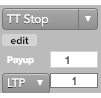
Tip: A dropdown for this value is added to the MD Trader Order Entry Panel to let you set the value without
needing to reopen the flyout panel.
Note: If you click a custom action button
(or use a hotkey) for this TT Order Type that also specifies an order
template, these two fields will not be displayed, as the template already defines their desired
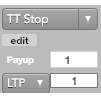
values.Right-clicking on the button displays these parameters. You can also click the edit
button to make changes, if desired.
(Secondary Qty Trigger): Sets a secondary trigger condition based on:
Executed quantity when the Price Type parameter is LTP
Quantity of the best ask when the Price Type parameter is Ask
Quantity of the best bid when the Price Type parameter is Bid
You can select a quantity or a percentage and select whether to use >= or
Reset on revert: Resets the trade quantity counter back to zero, if the inside market
backs away from the trigger price.
Note: This property is for trigger orders waiting for a specific quantity to trade at a specific price level. If the product trades beyond the trigger price, the order is triggered regardless of the quantity traded.
Trail (ticks): Specifies the number of ticks away from the specified Price Type the order should trail the market.
Adding a secondary liquidity condition for the trigger
To provide even greater control of when a TT Stop order submits its child order into the market, you can set a
secondary, liquidity-based condition. When the price reaches the TT Stop trigger price, you can check the available
quantity of a different price level. Only when both conditions are true, does the TT Stop parent order submit its
child order to their market.
Note: When using a second condition, precisely one of the conditions must use an LTP trigger.
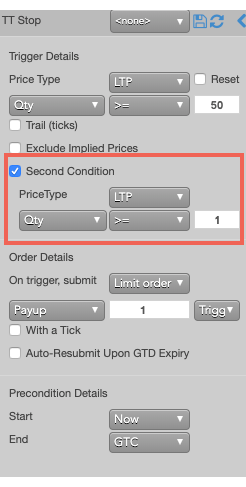
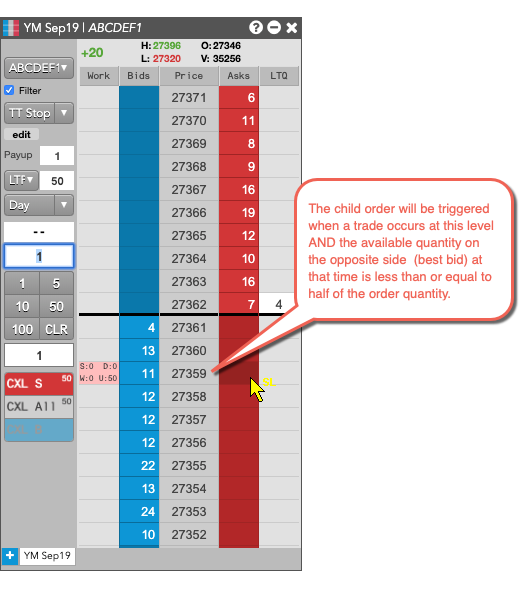
The following example configures a TT Stop order to trigger a Stop order only when a trade occurs at a price level
with less than half of the order quantity available at the price level on the opposite side of the market:
From the Price Type dropdown, select LTP and set the desired order quantity.
Enable Second Condtion.
Addtional settings are revealed.
From the Price Type dropdown, select Opposite Side; then set the trigger to
% .
Enter the order on the desired side of the market.
If you entered a Sell-side TT Stop order, the parent would would be similar to the following.
Setting the type and price of the child order
When the TT Stop parent order is triggered, it will enter a child order into the market. The TT Stop order lets you
enter the following types of child orders:
Market order
Limit order
To configure the child order details:
In the Trigger Details section of the flyout, configure the trigger condition as desired.
In the Order Details section, select the order type. In this example, we will submit a Limit
order, so select Limit order from the On trigger submit dropdown.
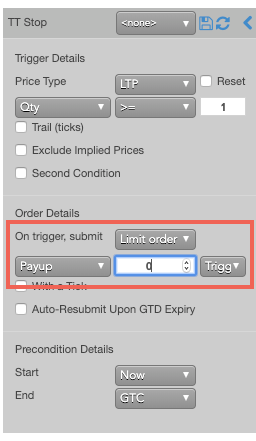
For a Limit order, you can use payup ticks to enter the child order using a relative price. In this example, we
set the payup ticks to 0 ticks away from the trigger price to enter the order at the trigger price.
You can also use positive numbers to price the order further away from the market or negative numbers to price the
order closer to the market from the selected price type.
Enter the order at the desired side and trigger price.
If you entered a Buy stop at 2954.50, the parent order would resemble the following.
With 0 payup ticks, the child order will be entered at the trigger price.
With postive payup ticks, the child order will be entered above the trigger.
With negative payiup tics, the child order will be entered below the trigger.
When the order is triggered, the TT Stop parent will enter its child order at 2954.50.
Aggressing the price of a working child order based on market conditions
You can also apply With-A-Tick functionality to the child orders. This
feature automatically gives traders the ability to work an order at one price and automatically pay up one tick
based on changes in market liquidity. It re-prices the child order one tick toward the market when the quantity
available at the opposite drops below a user-defined threshold.
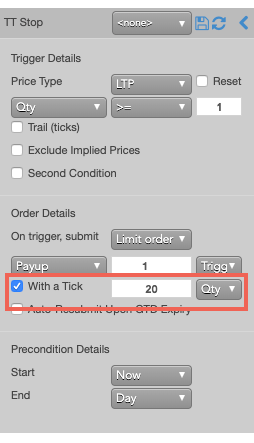
To configure each child order to pay-up one tick if the available quantity on the opposite side of the market drops
below 10, you would use the With a Tick feature as follows.
Specify the desired quantity and price settings.
Enable With a Tick, set the value to 20 and select Qty from the
dropdown.
Enter an order at the desired price.
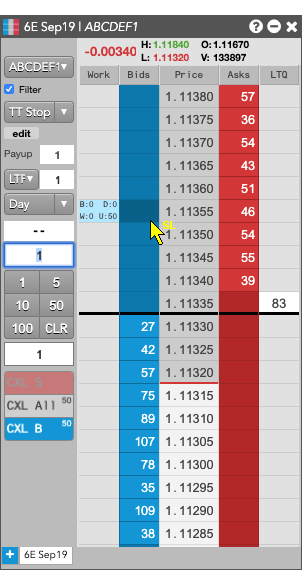
If you entered a Buy order at 1.11355, the TT Stop parent order would resemble the following.
When the TT Stop order is triggered, it looks at the available quantity at 11360. If the available quantity is
less than 20, the TT Stop parent order will submit its child order at 11360.
Setting start and end times for a TT Stop parent order
By default, a TT Stop order begins working immediately after submission and continues to work until canceled. You can, however, customize when a TT Stop parent order begins working and when it stops.
Note: If you specify both a trigger and a future start time, the start time takes precedence. When the specified start time is reached, the TT Stop parent order will begin working and evaluate the trigger condition at that time.
To set start and stop times for a TT Stop parent order:
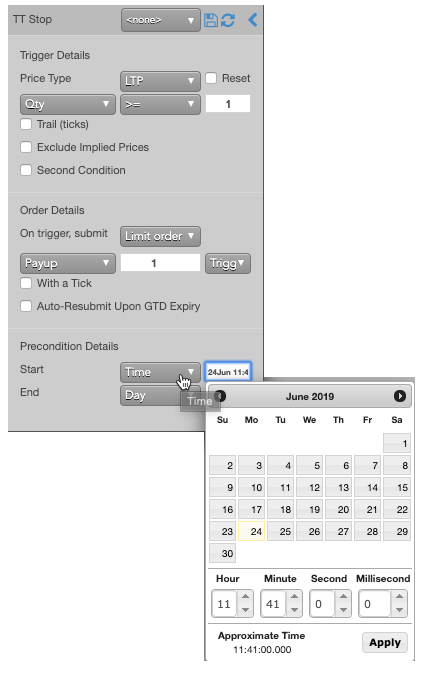
For the Start setting, click the dropdown arrow and select the desired start time option.
In this example, you select Time.
Set a start date and time in the calendar selector, and click Apply.
Tip: Use the “tab” key to navigate to the right between time edit boxes. Use “Shift + tab” to navigate left to an edit box.
Note: If you specify a future start time, the Order Book will show the TT Stop parent order Status as Working and its SynthStatus as Waiting.
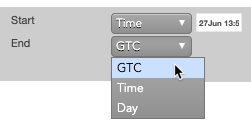
For the End setting, click the dropdown arrow and select one of the following:
GTC: Keeps the TT Stop parent order working until it is canceled.
Time: Sets a time and date for when the TT Stop parent order ends.
Day: Cancels the TT Stop parent order at the end of the trading session.
Note: When creating or using an order template and using the Time option, the Start and End dates automatically adjust if originally set in the past.
Enter the order at the desired price level.
If you placed the order with a future start time, the TT Stop parent order would appear in MD Trader and the Order Book similar to the following.
The Order Book shows the status of the future order.
A – The Status is Working, which indicates the TT Stop parent order is working on the Algo Server.
B – The SynthStatus is Waiting, which indicates the order has not yet started working in the market. When the start time is reached, the SynthStatus will also change to Working.
TT Stop order Audit Trail messages
The Audit Trail displays information about what causes TT Stop orders to
be triggered. When a TT Stop order is triggered, the Message column is populated with information
similar to the following:
The message uses the following format:
T[Trigger Type] [TriggerPrice] T[TriggerType][TriggerQtyType] [TriggerCompare] [TriggerQtyValue] M[TriggerType] [Trigger Type Price] M[TriggerType] [Qty At Trigger Type]
where the “T” values indicate the values the user provided for the TT Stop order and the “M” values represent the
market values that triggered the TT Stop order.
In this example, the following message was recorded when the TT Stop order was triggered:
TLTP 153.719 TLTPQty GTE 5 MLTP 153.719 MLTPQty 8
The message indicates the user entered a TT Stop order with a trigger condition of
LTP = 153.719 and LTP Qty (LTQ) >= 5. The market value
that triggered the TT Stop order was an LTP = 153.719 and LTP Qty
(LTQ) = 8.
TT Stop order parameters
Trigger Details parameters
Trigger Price: Sets the price at which to trigger the parent synthetic order.
Possible values include:
LTP: Last Traded Price
Ask: Best Ask
Bid: Best Bid
Same Side: Evaluates the trigger using the inside market price in the Buy/Sell direction of the order:
Best Bid for Buys
Best Ask for Sells
Opposite Side: Evaluates the trigger using the inside market price in the opposite Buy/Sell direction of the order:
Best Ask for Buys
Best Bid for Sells
Note: Using Same and Opposite sides instead of Bid and Ask lets you create a single order template that works when submitting either Buy or Sell orders instead of requiring separate templates for Buy and Sell orders.
Tip: A dropdown for this value is added to the MD Trader Order Entry Panel to let you set the value without
needing to reopen the flyout panel.
(Secondary Qty Trigger): Sets a secondary trigger condition based on:
Executed quantity when the Price Type parameter is LTP
Quantity of the best ask when the Price Type parameter is Ask
Quantity of the best bid when the Price Type parameter is Bid
You can select a quantity or a percentage and select whether to use >= or
Reset on revert: Resets the trade quantity counter back to zero, if the inside market
backs away from the trigger price.
Note: This property is for trigger orders waiting for a specific quantity to trade at a specific price level. If the product trades beyond the trigger price, the order is triggered regardless of the quantity traded.
Trail (ticks): Specifies the number of ticks away from the specified Price Type the order should trail the market.
Secondary Condition: Optional condition to require before triggering the order. The order is triggered only when the initial and secondary conditions are both TRUE.
Note: When specifying a second condition, exactly one of the conditions must use an LTP trigger.
Trigger Price: Sets the price at which to trigger the parent synthetic order.
Possible values include:
LTP: Last Traded Price
Ask: Best Ask
Bid: Best Bid
Same Side: Evaluates the trigger using the inside market price in the Buy/Sell direction of the order:
Best Bid for Buys
Best Ask for Sells
Opposite Side: Evaluates the trigger using the inside market price in the opposite Buy/Sell direction of the order:
Best Ask for Buys
Best Bid for Sells
Note: Using Same and Opposite sides instead of Bid and Ask lets you create a single order template that works when submitting either Buy or Sell orders instead of requiring separate templates for Buy and Sell orders.
(Secondary Qty Trigger): Sets a secondary trigger condition based on:
Executed quantity when the Price Type parameter is LTP
Quantity of the best ask when the Price Type parameter is Ask
Quantity of the best bid when the Price Type parameter is Bid
You can select a quantity or a percentage and select whether to use >= or
Trail (ticks): Specifies the number of ticks away from the specified Price Type the order should trail the market.
Exclude Implied Prices: Sets whether to exclude implied prices when evaluating the triggering logic.
Order Details parameters
On trigger submit: Sets the type of exchange-native order to submit when the order is triggered.
Possible values include:
Limit order
Market order
Payup – Sets the number of ticks from the specified price to submit the Limit order. Positive values indicate towards the market and negative values indicate away from the market.
The offset is based on the following prices:
LTP: Last Traded Price
Ask: Best Ask
Bid: Best Bid
Trigger: Trigger price
Same Side: Evaluates the trigger using the inside market price in the Buy/Sell direction of the order:
Best Bid for Buys
Best Ask for Sells
Opposite Side: Evaluates the trigger using the inside market price in the opposite Buy/Sell direction of the order:
Best Ask for Buys
Best Bid for Sells
Tip: An entry field for this value is added to the MD Trader Order Entry Panel to let you set the value without needing to reopen the flyout panel.
Note: If you click a custom action button (or use a hotkey) for this TT Order Type that also specifies an order template, these two fields will not be displayed, as the template already defines their desired values.Right-clicking on the button displays these parameters. You can also click the edit button to make changes if desired.
Limit price: Sets the price for the child Limit order.
With a Tick: Sets the threshold for the With A Tick behavior that reprices the child order one tick toward the market when available quantity at the opposite inside market is at or below the specified quantity threshold.
The quantity can be specified as:
Qty for an absolute number of contracts
% for a percentage of the initial quantity for this order
Auto-Resubmit Upon GTD Expiry: Valid only when the child order TIF is Day (GTD). If any child orders are not completely filled by the session close, the exchange will expire the child orders; when the market reopens, the parent order will then resubmit the child orders with the same parameters as when they expired.
Precondition Details parameters
Start: Sets the date and time to start executing the order.
Values include:
Now to start the order immediately
Time to display a date/time picker for you to indicate when to start the order
Pre-open to enter the order at the pre-open state defined by an exchange
Open to enter the order when the exchange opens its trading session
End: Sets the time to stop executing the logic of the order
Possible values include:
GTC, which leaves the order working until canceled
Time, which displays a date/time picker for you to indicate when to stop the order
Day, which leaves the order working until the market closes
If End Time is selected and the End Time is reached, the order is deleted and the specified End Action is applied to its child orders. If the trading session is closed when the End Time is reached, the delete request will fail, leaving working GTC child orders on the exchange. It is your responsibility to delete these orders when the exchange re-opens.
At End Action: Sets the action to take for any unfilled balance when the End time is reached. Visible only for a custom End time.
Possible values include:
Cancel — Cancels all child orders and stops the order type.
Go to Market — Cancels the resting Limit order and submits a Market order. When selected, the “Mkt Order Lmt ticks” option is displayed.
Mkt Order Lmt ticks — Sets the number of ticks from LTP to submit a Limit order through the opposite inside market. If the checkbox is checked: all child orders are canceled, a Limit order is submitted for the unfilled quantity at a price that’s a set number of ticks from LTP, and the order type is stopped. If the checkbox is unchecked: all child orders are canceled, a Market order is submitted for the unfilled quantity, and the order type is stopped.
This site is registered on wpml.org as a development site. Switch to a production site key to remove this banner.