



Trade
Overview
TT Platform
Description
Task
Browser Access
Description
Task
Videos
TT Desktop
Description
Task
Videos
Reference
Workspace Windows
Description
Task
Videos
Widgets
Description
Task
Preferences
Description
Viewing Market Data
Time and Sales
Task
Reference
Description
Depth
Description
Task
Reference
Market Grid
Description
Task
Videos
Reference
Product Grid
Description
Task
Reference
Spread Matrix
Description
Task
Videos
Reference
Basic Order Entry
TT Order Types
Description
Task
Videos
Reference
Case Studies
TT Premium Order Types
Description
Task
Reference
Order Ticket
Description
Task
Use Cases
Reference
MD Trader®
Description
Task
Videos
Reference
Order Profiles
Description
Task
Reference
Routing Rules
Description
Task
Blocktrader
Description
Task
Videos
Reference
Trading Crypto on TT
Description
Task
Videos
Reference
Trading on B3
Order Management
Order Book
Description
Task
Reference
Floating Order Book
Description
Task
Reference
Fills
Description
Task
Reference
Positions
Description
Task
Reference
Orders and Fills
Description
Task
Reference
Audit Trail
Description
Task
Reference
Audit Query
Description
Task
Reference
Account List
Description
Task
Videos
Reference
Position Manager
Description
Task
Reference
Alert Manager and Alert Viewer
Description
Task
Videos
Reference
Account & User Restrictions
Description
Task
Reference
Balances
Description
Task
Reference
TT® OMS
Care Orders
Description
Task
Videos
Reference
Lock and Release
Description
Task
Bulking
Description
Task
Videos
Stitching and Splitting
Description
Task
Combining
Description
Task
Order Passing
Description
Task
Use Cases
Order Exceptions
Description
Task
Options
Options on TT
Description
Videos
Options Chain
Description
Task
Use Cases
Videos
Reference
Options Trade Monitor
Description
Task
Videos
Reference
Vol Curve Manager
Description
Task
Use Cases
Videos
Reference
Electronic Eye
Description
Task
Videos
Reference
RFQ Viewer
Description
Task
Videos
Reference
RFQ with Counterparties
Description
Task
Counterparty Manager
Description
Task
Strategy Creation
Description
Task
Use Cases
Reference
Options Risk
Description
Task
Videos
Reference
Options Risk Matrix
Description
Task
Videos
Reference
Watchlist
Description
Task
Videos
Reference
Expiration Manager
Description
Task
Volatility Calculator
Description
Task
TT Uncovered 2.0
Description
Task
TT Uncovered 3.0
Description
Task
QuikStrike
Description
Task
Spread Trading
Autospreader
Description
Task
Use Cases
Videos
Reference
Autospreader Rules
Description
Task
Videos
Reference
Hedge Manager
Description
Task
Videos
Reference
Trading in Yield
Description
Task
Use Cases
Reference
Aggregator
Description
Task
Videos
Reference
Algo Trading
Algo Dashboard
Description
Task
Videos
Reference
Template Manager
Description
Task
Order Management Algos (OMAs)
Autotrader
Description
Task
Reference
Videos
Excel integration with TT
Description
Task
Videos
Reference
Market-Making Algos
Analytics
Charts
Description
Technical Indicators
Task
Videos
Reference
Trader Analytics
Description
Task
Reference
ADL
ADL Overview
Introduction to ADL
Description
Task
Videos
Reference
ADL Basic Concepts
Description
Task
Reference
Building your first algo
Lessons
Advanced concepts
Description
Task
Case Studies
Jump blocks
Group blocks
Virtualized blocks
Library blocks
Trading Blocks
Discrete blocks
Arithmetic blocks
Basic blocks
Logic blocks
Miscellaneous blocks
Setup
Setup Overview
Getting Started
Description
Task
Videos
Reference
Supported Order Types and TIFs
Company Administration
Connections
Description
Task
Videos
Reference
Accounts
Description
Task
Videos
Use Cases
Reference
Users
Description
Task
Videos
Reference
Company
Description
Task
Reference
Order Tag Defaults
Description
Task
Account Administrators
Description
Task
TT Premium Services
Description
Task
TT Access
Description
Task
Advanced Features
Description
Risk Management
Risk Administration
Description
Task
Risk Limits
Description
Task
Videos
Reference
Pre-Trade Portfolio Risk
Description
Task
Reference
Order Cross Prevention
Description
Task
Videos
KRM Limits
Description
Task
TT® OMS
TT OMS Administration
Description
Task
Use Cases
Reference
Exchanges: Americas
B3
Description
Task
CBOE
Description
Task
Cboe FX
Description
Task
Reference
CFE
Description
Task
CME
Description
Task
Dealerweb
Description
Task
EBS Direct
Description
Task
EBS Market
Description
Task
Fenics
Description
Task
FMX
Description
Task
FMX_USTF
Description
Task
Goldman Sachs Commodity Blocks (GSCB)
Description
Task
Referece
ICE
Description
Task
MexDer
Description
Task
MIAX_FUT_CH
Description
Task
MIAX_FUT_NY
Description
Task
MX
Description
Task
Nodal
Description
Task
NFI
Task
Exchanges: EMEA
ATHEX
Description
Task
BIST
Description
Task
DGCX
Description
Task
EEX
Description
Task
EPEX SPOT
Description
Task
Reference
Eris
Description
Task
Eurex
Description
Task
Videos
Euronext
Description
Task
GFO-X
Description
Task
ICE_L
Description
Task
JSE
Description
Task
LME
Description
Task
LME NTP
Description
Task
LSE
Description
Task
MEFF
Description
Task
NDAQ_EU
Description
Task
NASDAQ_NED
Description
Task
Nord Pool
Description
Task
Reference
WSE
Description
Task
Exchanges: Asia/Pacific
ABX
Description
Task
ASX
Description
Task
FEX
Description
Task
HKEx
Description
Task
JPX
Description
Task
NSE
Description
Task
NZX
Description
Task
SGX
Description
Task
SGX GIFT
Description
Task
TAIFEX
Description
Task
TFEX
Description
Task
TFX
Description
Task
CoinFLEX
Task
Exchanges: Crypto
Coinbase
Description
Task
Kraken
Description
Task
FIX Support
FIX Ruleset
Description
Task
FIX Sessions
Description
Task
Secondary Accounts
Description
Task
Monitor
TT Mobile
TT Backtesting
APIs
TT REST API 2.0
Getting Started
API Reference
TT REST API 2.0 (UAT)
Getting Started
API Reference
TT .NET SDK
Getting started with TT .NET SDK
Creating the application framework
Working with instruments
Subscribing for market data
More about prices
An in-depth look at the Price class
Working with orders and fills
Handling trade subscriptions
Working with trade subscriptions
Working with Algos
Algo Server
TT Order Types
TT Premium Order Types
Advanced Concepts and Options
Appendix
TT CORE SDK
Getting Started with TT Core SDK
Creating Application Framework
Working With Instruments
Subscribing for Market Data
Working with Orders and Fills
Creating a TT Application Server
Appendix
TT Trade Surveillance
Overview
Using TT Trade Surveillance
Cluster View
Core Models
Market Abuse Models
Cross Product Models
Spoofing Models
Improperly Matched Trade Models
Market Rate Models
Trading Behaviors Models
Miscellaneous Models
Configurable Models
Reports
Wachlists
Reference
TT FIX Services
TT FIX General
Getting Started
FIX Message Structure
Session messages
TT FIX Order Routing
Overview
TT FIX message conversations
Supported application messages
TT FIX Market Data
Overview
TT FIX message conversations
Supported application messages
TT FIX Drop Copy Out
Overview
TT FIX Message Conversations
Supported application messages
Compliance Feed messages
TT FIX Drop Copy In
Overview
Supported application messages
TT FIX Gateway
Getting Started
FIX Message Structure
Components
Session messages
Price Gateway Messages
Order Gateway Messages
TT FIX Recovery
Overview
FIX Recovery Methods
Supported application messages
Compliance Feed Messages
MiFID II Support

ポジションの管理

On this page

会社の管理者として、左ナビゲーションの [Positions] タブを使って、リアルタイムで更新されるポジションと損益を表示します。トレーダーの開始ポジションとマニュアル フィルを表示することもできます。

ポジションは会社の親口座と子副口座ごととに提供されます。親口座には、すべての子口座のポジションと損益の集約が表示されます。親口座が取引所に送信されない場合は、[Positions] セクションに表示されますが、すべての欄は空白となります。この場合、該当する子口座が表示されます。矢印をクリックして、口座の一覧を表示または非表示にできます。一覧の口座をクリックすると、ポジションの詳細が表示されます。
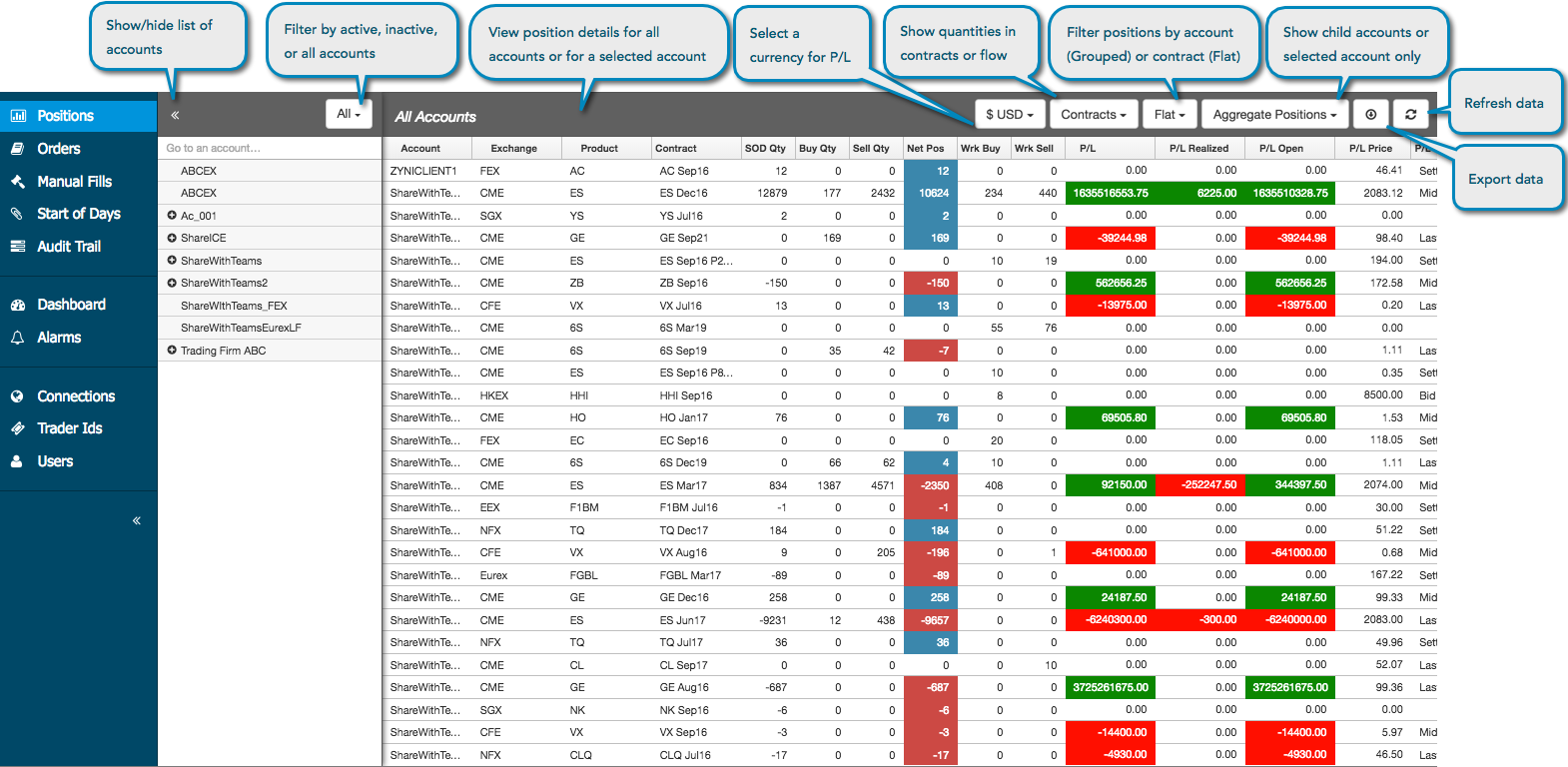
一覧の口座をクリックして、ポジションの詳細を表示します。有効または無効な口座で一覧をフィルター表示できます。[Accounts] グリッドにて、[Buy Qty]、[Sell Qty]、[Wrk Buy]、[Wrk Sell]、[SOD Qty], [Net Pos]、[P/L] がすべて「0」に等しい場合、口座は「無効」と見なされます。

[All Accounts] 画面から、以下の内容を実行できます。

  • 選択した通貨で損益 (P/L) を表示します。
  • 限月またはフローで枚数を表示します。
  • 口座ごと (Grouped) または限月ごと (Flat) にポジションの詳細を表示します。
  • 親と関連子口座のポジションを統合して表示するか (Aggregate Positions)、または選択した口座のみのポジションを表示します (Direct Positions)。
  • csv、xml、json ファイルにポジション データをエクスポートします。
  • 新規のポジションを確認して表示されるデータを更新します。

すべてのユーザーは [Monitor] アプリケーションの [Positions] タブを使って損益を監視してポジションを確認しますが、ポジションをオフセットしたりマニュアル フィルを作成するには、ポジションが更新されるように設定しておく必要があります。

会社の管理者として、[Monitor] の [Positions] タブを使用して以下の内容を実行します。

損益の監視とポジションの確認

現在の取引セッションで、[Monitor] アプリケーションを選択してセッション中に使用されるすべての口座と、現在のセッション中に取引を発注したすべてのユーザーを表示できます。

注: [Trade] アプリケーションの [Positions] ウィジェットには、すべての取引セッションの口座ごとの損益が表示されます。[Monitor] には、現在の取引セッションのみのオープン ポジションと損益が表示されます。

損益の監視とポジションの確認を行うには

  1. [Accounts] セクションにて口座を選択または口座に移動します。
  2. [Positions] セクションのタイトルバーにて通貨を選択します。
  3. 各口座の以下の欄を確認します。
    • Buy Qty: 合計買枚数。
    • Sell Qty: 合計売枚数。
    • Net Pos: 始業時 (SOD) のポジションと、買値と売値の差異を示します。
    • Wrk Buy: すべての約定待ち買注文の枚数の合計。
    • Wrk Sell: すべての約定待ち売注文の枚数の合計。
    • P/L: 損益の合計。P/L = P/L = オープン P/L + 実現 P/L。表示される損益は、リスク チェックに使用されるのと同じ方法に基づいています。
    • Open P/L: オープン ポジションからの損益。
    • Open P/L: クローズ ポジションからの損益。
    • P/L Price — The actual price being compared in the P/L calculation per contract.
    • P/L Price Type — The type of price being used to calculate P/L for the contract row.One of the following values will be displayed based on which price was selected for calculating P/L:
      • Mid — Midpoint of the best Bid price and Ask price
      • Last — Last Traded Price (LTP)
      • Bid/Ask — The Bid or Ask price based on which is available
      • Settle — Settlement price from the previous trading session
      • Close — Closing price from the previous trading session
    • Avg Buy — The average Buy price, excluding the SOD price and quantity.
    • Avg Sell — The average Sell price, excluding the SOD price and quantity.
    • Margin — The amount of money set aside for open positions and working orders per contract.
    • Credit — The amount of money you can use daily.
    • Credit Available — Available daily credit, which is:Credit + P/L – Margin.
    • % Credit Used — The percentage of credit used for the day.
    • SOD Qty — The user’s or account’s net position at the start of the trading session.Can be updated manually or automatically after a position reset.
    • SOD Prc — The settlement or manually entered contract price for the start of the trading session.
    • SOD Prc Type — Shows whether the SOD Prc is the exchange’s settlement price (Settlement) or a manually entered SOD price (Manual).May be displayed per contract or parent account.
    • Company — Shows the company that the user is an employee of (not shared with).
  4. Auto Liq % — Shows the credit loss percentage set for the account with auto-liquidate enabled.Shown when positions are grouped by account.

  5. Curr Liq % — Shows the current credit loss percentage based on P/L updates for the account.Shown when positions are grouped by account.
  6. Bal to Liq — Shows the positive balance before the liquidation threshold is reached or the negative balance after the threshold is breached:(credit loss % * credit limit) + P/L.

Calculating P/L:Monitor

The monitor application calculates P/L using the following waterfall logic:

  1. P/L is calculated using the midpoint of the Bid and Ask if both are present.This includes when the market is more than a tick wide.
  2. If there is only a Bid or Ask, then P/L is calculated using the Last Traded Price (LTP).
  3. If there is no LTP, then P/L is based on the Bid price.If there is no Bid, then the Ask price is used for calculating P/L.
  4. If none of these price types are available, then P/L is calculated based on the Settle price.In the case of no Settle price, P/L will be based on the previous closing price.

Creating a Manual Fill

A manual fill record is a trader’s open position from another source.Like Start of Day records, manual fills allow administrators to more accurately manage their traders’ overall position.On the Positions screen, you can right-click an account, market, product, or contract to open the Manual Fills screen to create and offset manual fill records.

注: You can not modify a published manual fill, but you can create a new manual fill to offset the one you published previously.You can only modify manual fill data prior to publishing.

SOD の変更

A Start of Day record (SOD) is the summary of the net position that a user had on a specific contract during the previous trading session.On the Positions screen, you can select an account and right-click a contract to select Modify SOD and open the Start-of-Day Position Record screen to modify SOD records.

Account auto-liquidation status

When an account has been liquidated due to exceeding its credit limit, you will see the following alert in the Accounts grid for the account:

To clear this alert, you must enable the account for trading and increase the account’s daily credit limit.Refer to the Setup help for details.


This site is registered on wpml.org as a development site. Switch to a production site key to remove this banner.