



ADL
ADL Overview
ADL Basic Concepts
Description
Reference
Task
Advanced concepts
Case Studies
Description
Task
Building your first algo
Lessons
Introduction to ADL
Description
Reference
Task
Videos
Arithmetic blocks
Basic blocks
Discrete blocks
Group blocks
Jump blocks
Library blocks
Logic blocks
Miscellaneous blocks
Trading Blocks
Virtualized blocks
APIs
TT .NET SDK
Advanced Concepts and Options
Appendix
Creating the application framework
Getting started with TT .NET SDK
Subscribing for market data
More about prices
An in-depth look at the Price class
Working with Algos
Algo Server
TT Order Types
TT Premium Order Types
Working with instruments
Working with orders and fills
Handling trade subscriptions
Working with trade subscriptions
TT CORE SDK
Appendix
Creating a TT Application Server
Creating Application Framework
Getting Started with TT Core SDK
Subscribing for Market Data
Working With Instruments
Working with Orders and Fills
TT REST API 2.0
API Reference
Getting Started
TT REST API 2.0 (UAT)
API Reference
Getting Started
Data and Analytics
TT Margin
MiFID II Support
Monitor
Setup
Company Administration
Account Administrators
Description
Task
Accounts
Description
Reference
Task
Use Cases
Videos
Advanced Features
Description
Company
Description
Reference
Task
Connections
Description
Reference
Task
Videos
Order Tag Defaults
Description
Task
TT Access
Description
Task
TT Premium Services
Description
Task
Users
Description
Reference
Task
Videos
Exchanges: Americas
B3
Description
Task
CBOE
Description
Task
Cboe FX
Description
Reference
Task
CFE
Description
Task
CME
Description
Task
Dealerweb
Description
Task
EBS Direct
Description
Task
EBS Market
Description
Task
Fenics
Description
Task
FMX
Description
Task
FMX_USTF
Description
Task
Goldman Sachs Commodity Blocks (GSCB)
Description
Referece
Task
ICE
Description
Task
MexDer
Description
Task
MIAX_FUT_CH
Description
Task
MIAX_FUT_NY
Description
Task
MX
Description
Task
NFI
Task
Nodal
Description
Task
Exchanges: Asia/Pacific
ABX
Description
Task
ASX
Description
Task
CoinFLEX
Task
FEX
Description
Task
HKEx
Description
Task
JPX
Description
Task
NSE
Description
Task
NZX
Description
Task
SGX
Description
Task
SGX GIFT
Description
Task
TAIFEX
Description
Task
TFEX
Description
Task
TFX
Description
Task
Exchanges: Crypto
Coinbase
Description
Task
Kraken
Description
Task
Exchanges: EMEA
ATHEX
Description
Task
BIST
Description
Task
CEDX
DGCX
Description
Task
EEX
Description
Task
EPEX SPOT
Description
Reference
Task
Eris
Description
Task
Eurex
Description
Task
Videos
Euronext
Description
Task
GFO-X
Description
Task
ICE_L
Description
Task
JSE
Description
Task
LME
Description
Task
LME NTP
Description
Task
LSE
Description
Task
MEFF
Description
Task
NASDAQ_NED
Description
Task
NDAQ_EU
Description
Task
Nord Pool
Description
Reference
Task
WSE
Description
Task
FIX Support
FIX Ruleset
Description
Task
FIX Sessions
Description
Task
Secondary Accounts
Description
Task
Risk Management
KRM Limits
Description
Task
Order Cross Prevention
Description
Task
Videos
Pre-Trade Portfolio Risk
Description
Reference
Task
Risk Administration
Description
Task
Risk Limits
Description
Reference
Task
Videos
Setup Overview
Getting Started
Description
Reference
Task
Videos
Supported Order Types and TIFs
TT® OMS
TT OMS Administration
Description
Reference
Task
Use Cases
Trade
Algo Trading
Algo Dashboard
Description
Reference
Task
Videos
Autotrader
Description
Reference
Task
Videos
Excel integration with TT
Description
Reference
Task
Videos
Market-Making Algos
Order Management Algos (OMAs)
Template Manager
Description
Task
Analytics
Charts
Description
Reference
Task
Technical Indicators
Videos
Trader Analytics
Description
Reference
Task
Basic Order Entry
Blocktrader
Description
Reference
Task
Videos
MD Trader®
Description
Reference
Task
Videos
Order Profiles
Description
Reference
Task
Order Ticket
Description
Reference
Task
Use Cases
Routing Rules
Description
Task
Trading Crypto on TT
Description
Reference
Task
Videos
Trading on B3
TT Order Types
Case Studies
Description
Reference
Task
Videos
TT Premium Order Types
Description
Reference
Task
Options
Counterparty Manager
Description
Task
Electronic Eye
Description
Reference
Task
Videos
Expiration Manager
Description
Task
Options Chain
Description
Reference
Task
Use Cases
Videos
Options on TT
Description
Videos
Options Risk
Description
Reference
Task
Videos
Options Risk Matrix
Description
Reference
Task
Videos
Options Trade Monitor
Description
Reference
Task
Videos
QuikStrike
Description
Task
RFQ Viewer
Description
Reference
Task
Videos
RFQ with Counterparties
Description
Task
Strategy Creation
Description
Reference
Task
Use Cases
TT Uncovered
TT Uncovered 2.0
Description
Task
TT Uncovered 3.0
Description
Task
Vol Curve Manager
Description
Reference
Task
Use Cases
Videos
Volatility Calculator
Description
Task
Watchlist
Description
Reference
Task
Videos
Order Management
Account & User Restrictions
Description
Reference
Task
Account List
Description
Reference
Task
Videos
Alert Manager and Alert Viewer
Description
Reference
Task
Videos
Audit Query
Description
Reference
Task
Audit Trail
Description
Reference
Task
Balances
Description
Reference
Task
Fills
Description
Reference
Task
Floating Order Book
Description
Reference
Task
Order Book
Description
Reference
Task
Orders and Fills
Description
Reference
Task
Position Manager
Description
Reference
Task
Positions
Description
Reference
Task
Overview
Browser Access
Description
Task
Videos
Preferences
Description
TT Desktop
Description
Reference
Task
Videos
TT Platform
Description
Task
Widgets
Description
Task
Workspace Windows
Description
Task
Videos
Spread Trading
Aggregator
Description
Reference
Task
Videos
Autospreader
Description
Reference
Task
Use Cases
Videos
Autospreader Rules
Description
Reference
Task
Videos
Hedge Manager
Description
Reference
Task
Videos
Trading in Yield
Description
Reference
Task
Use Cases
TT® OMS
Bulking
Description
Task
Videos
Care Orders
Description
Reference
Task
Videos
Combining
Description
Task
Lock and Release
Description
Task
Order Exceptions
Description
Task
Order Passing
Description
Task
Use Cases
Stitching and Splitting
Description
Task
Viewing Market Data
Depth
Description
Reference
Task
Market Grid
Description
Reference
Task
Videos
Product Grid
Description
Reference
Task
Spread Matrix
Description
Reference
Task
Videos
Time and Sales
Description
Reference
Task
TT Backtesting
TT FIX Services
TT FIX Drop Copy In
Overview
Supported application messages
TT FIX Drop Copy Out
Compliance Feed messages
Overview
Supported application messages
TT FIX Message Conversations
TT FIX Gateway
Components
FIX Message Structure
Getting Started
Order Gateway Messages
Price Gateway Messages
Session messages
TT FIX General
FIX Message Structure
Getting Started
Session messages
TT FIX Market Data
Overview
Supported application messages
TT FIX message conversations
TT FIX Order Routing
Overview
Supported application messages
TT FIX message conversations
TT FIX Recovery
Compliance Feed Messages
FIX Recovery Methods
Overview
Supported application messages
TT Mobile
TT Trade Surveillance
Cluster View
Configurable Models
Core Models
Cross Product Models
Improperly Matched Trade Models
Market Abuse Models
Market Rate Models
Miscellaneous Models
Spoofing Models
Trading Behaviors Models
Overview
Reference
Reports
Using TT Trade Surveillance
Wachlists

Algo dashboard panes

On this page

The Algo Dashboard is divided into three separate panes. Located on the left side is the Algo Explorer pane where you can search for and select private or shared algos. When selected, the algo variables display in the center Algo Orders pane where you can edit and start the algo. Any changes made to variables can be saved as a template for future use. After an algo has been started, you can monitor and manage its progress in the Algo Variables pane.

Algo Explorer pane

The Algo Explorer pane allows you to quickly locate and manage algos within a tree structure. The top level of the tree is split into two branches: My Algos and Shared with me. The My Algos branch contains all algos that have been deployed with your TT ID. The Shared with me branch contains algos that have been published by TT or shared with you by other algo developers.
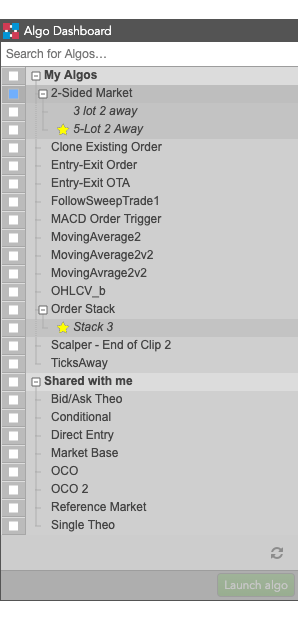
Algo Explorer Pane

Note: The list includes only ADL algos and Order Ticket Algos (OTAs) you have permission to run.

When you select an algo, the Algo Explorer shows the algo details and variables, as shown.

Algo Launch Pane

  1. Template selection: Lets you choose a specific algo template, if available.
  2. Algo-specific variables: Lets you verify or change the input variables for the algo before launching it.
  3. Common algo variables: Lets you specify values for common algo variables.

Split panel view

The Algo Explorer split panel view lets you show both the algo list and a selected algo’s parameters by selecting Switch to split panel from the Algo Explorer’s context menu. The two panels are placed side-by-side in the same space as the Algo Explorer pane, but you an resize one or both the split panels. With the split panel view, you can quickly select and modify algo or template parameters before launching.
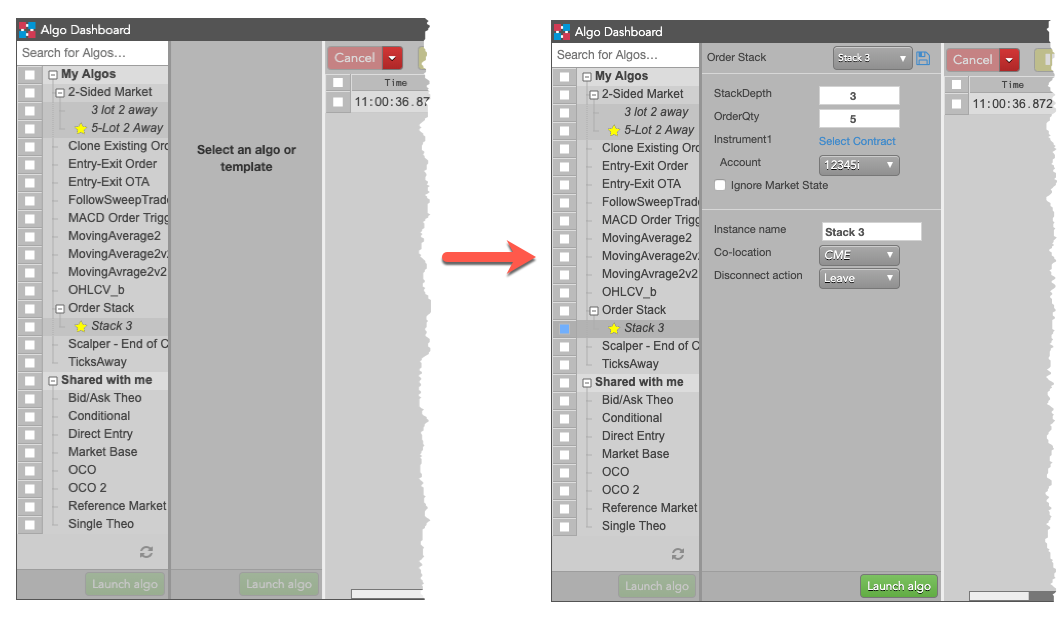
Algo Explorer split view

Selecting Switch to single panel from the split panel context menu, restores the standard Algo Explorer pane view.

Algo Orders pane

Located on the center of the Algo Dashboard is the Algo Orders pane. At the top of the pane is the Algo Dashboard toolbar, which allows you to cancel, pause, or resume algos. Directly below the toolbar is the Algo order grid, which contains algos that you started.
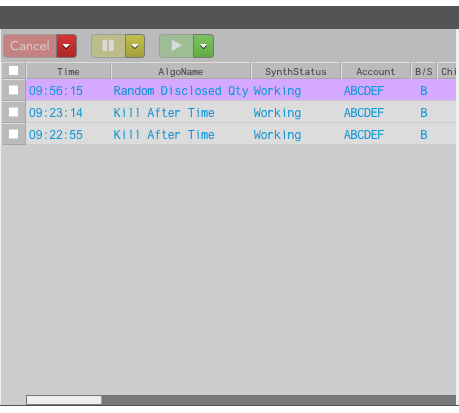
Algo Orders Pane

Note: Algo orders can also be managed from the Order Book widget.

Algo Variables pane

The Algo Variable pane is located on the right side of the Algo Dashboard and allows you to modify user-defined algo variables. It contains two tabs:

  • The Variables tab shows two types of variables: algo-specific and standard. Algo-specific variables are added within ADL® (Algo Design Lab) and can include such things as order quantity or offsets. The standard variables listed below the algo-specific variables include unchangeable variables, such as Co-location and Client Disconnect Action.
  • The Exports tab shows the names and values of exported variables defined for the algo in ADL.
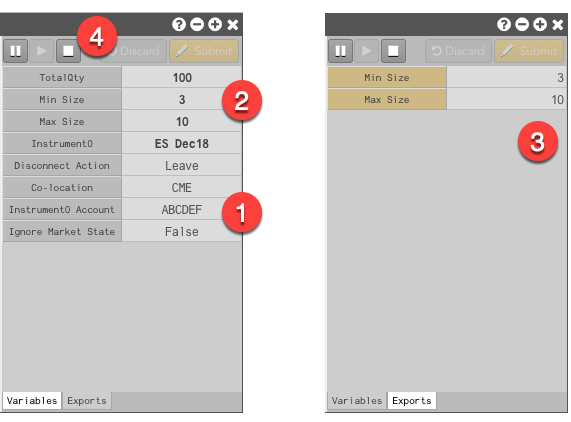
Algo Variables Pane

  1. A gray background indicates that you cannot change the variable value.
  2. A white background indicates you can double-click a value to modify it.
  3. Exported variables defined in the algo.
  4. Algo controls.

Note: All user-defined input and output variables for the algo are also shown in the Algo Orders pane.

Minimizing the Algo Dashboard panes

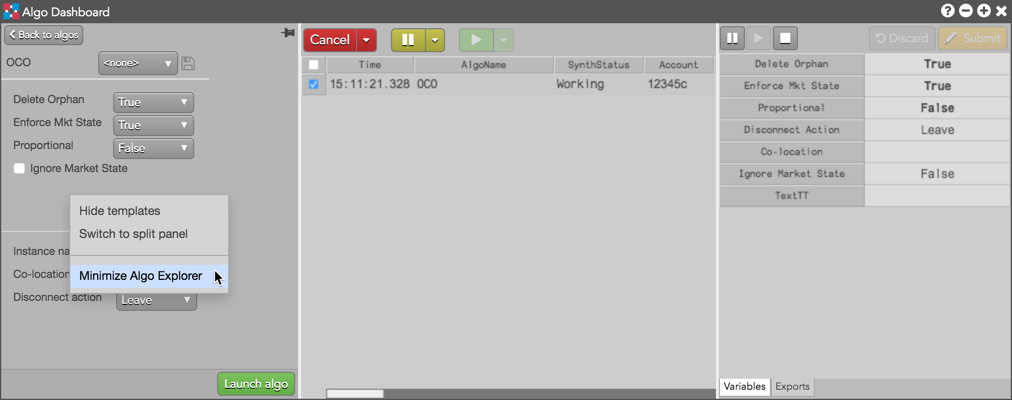
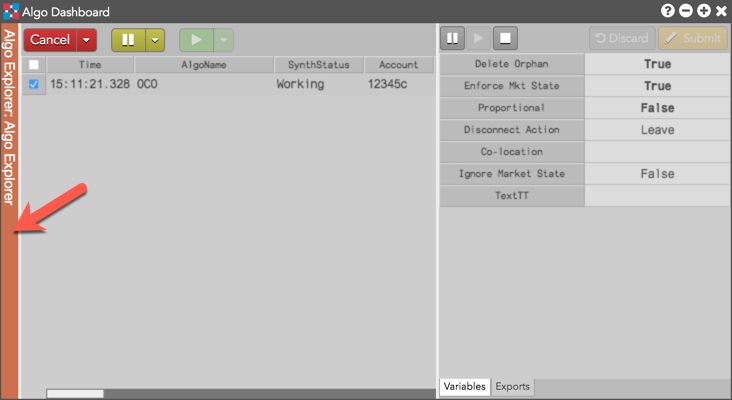
You can minimize the Algo Explorer (left) and Algo Parameters (right) panes via the right-click context menu.
Once minimized, the panes can be restored with a left-click on the thin vertical bar.
This site is registered on wpml.org as a development site. Switch to a production site key to remove this banner.