










The owner who claimed the care order can enter related child orders to fill the parent order. Child orders are sent to the exchange based on the total quantity, price and position of the parent care order, and can be submitted in the same account or different accounts.
Child orders can be submitted simultaneously or at different times, allowing the staged order to be worked based on market conditions. The owner can submit child orders using TT order types or algos in addition to the natively supported order types and TIFs. Native order types and TIFs vary by exchange.
When submitting a child order for a claimed care order, the owner cannot:
- Reverse the Buy/Sell direction of the order.
- Exceed the parent order quantity. However, the related child order quantity can be increased as long as it doesn’t exceed the parent order quantity.
- Change the instrument specified in the order.
Child orders can be submitted using the following methods:
- Submitting child orders using the Order Ticket or MD Trader
- Submitting child orders using the Execute button
- Submitting child orders using the staged order alert
- Submitting child orders with a clearing account override
- Submitting multiple child orders with the same algo
Submitting child orders using the Order Ticket or MD Trader
Left-clicking the B/S button on a parent care order in the Order Book launches either an Order Ticket or MD Trader based on the Orders | Floating order entry style setting in Orders Preferences.
Right-clicking the B/S button on a parent care order in the Order Book launches an order entry widget of the opposite style defined in the Orders Preferences. For example, if Order Ticket is set as the preferred left-click order entry style, a right-click will launch an MD Trader widget seeded with the staged order details.
Submitting child orders using the Order Ticket
- Select the care order in the Order Book.
-
Depending on the Floating order entry style setting in Orders Preferences, either left-click or right-click the B (Buy) or S (Sell) button in the B/S column for the care order.
The Order Ticket opens seeded with the parent care order parameters and shows either the Buy or Sell button based on whether the parent order is a buy or a sell order.
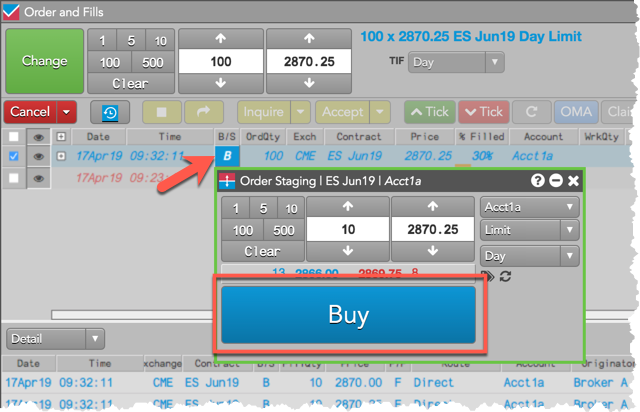
- Enter the order
parameters and account in the Order Ticket as needed.
If using an order profile, the account configured in the profile will be used to submit the order. This can be a different account or the same account as the originator.
Note: If you select an order profile for the child order, the order tag values and account for that profile will be placed on the child order.
All native order types and TT synthetic order types are supported when submitting a child order.
-
Click the single BUY or SELL button in the Order Ticket to submit the child order to the exchange.
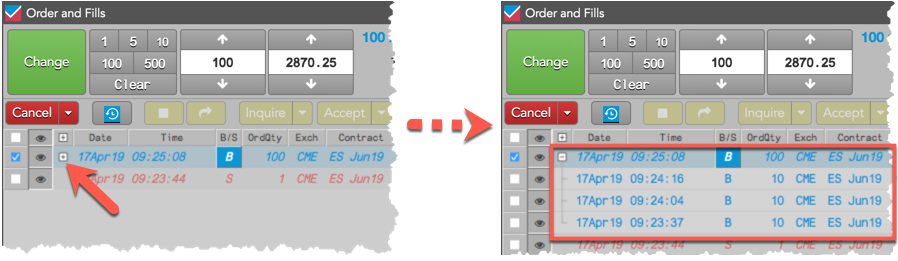
Tip: Click the expander (+) in the working care order row in the Order Book to show all working or filled child orders, as well as show fills assigned to the parent order.
Submitting child orders using MD Trader
- Select the care order in the Order Book.
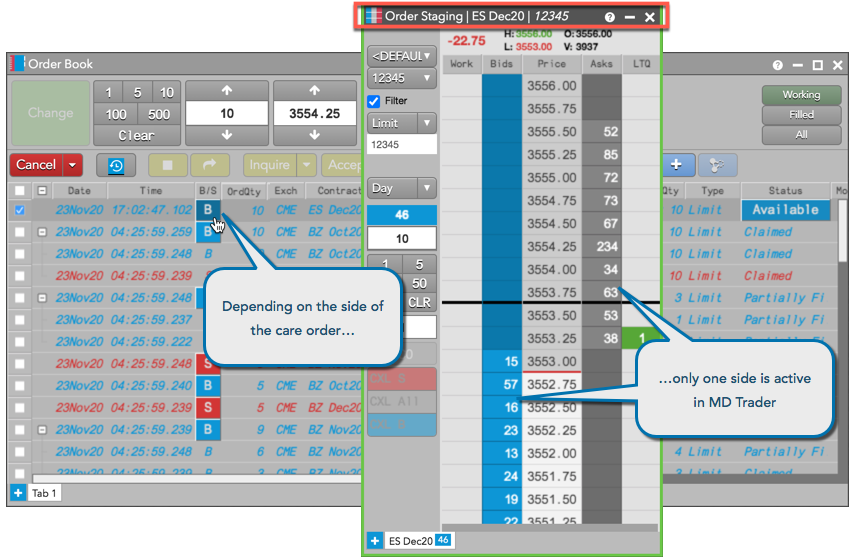
- Depending on the Floating order entry style setting in Orders Preferences, either left-click or right-click the B (Buy) or S (Sell) button in the B/S column for the care order.
- Change the quantity as needed and click a price level to submit the order.
MD Trader opens seeded with the parent care order parameters, but only one side is active depending on the side of the parent order.
Submitting child orders using the Execute button
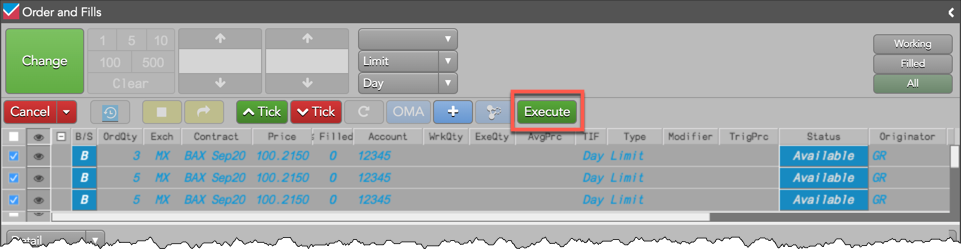
The optional “Execute” button gives you the ability to submit child orders for multiple care orders with a single click. The child orders are submitted based on the order parameters of the care order.
To display the button, right-click the Order Book or orders pane in the Order and Fills widget and click Settings: Order Book | Set Order Toolbar buttons.
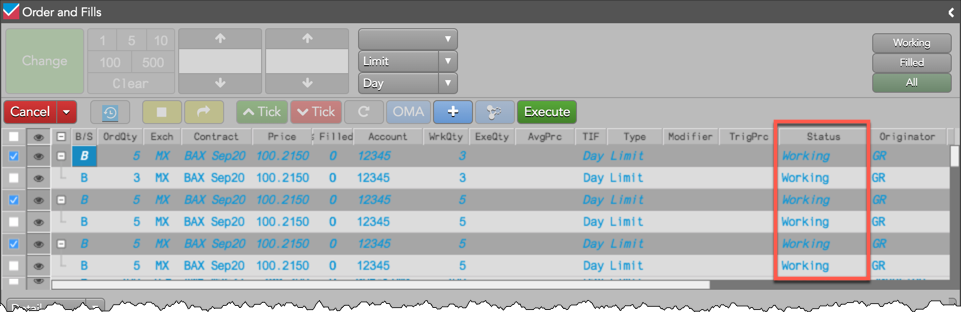
To submit child orders using the “Execute” button, select one or more care orders in the Order Book or orders
pane
and click  .
.
Tip: If the user or account setting “Manage staged orders without claiming” is enabled, you can also claim and submit child orders for multiple care orders by clicking “Execute”.
The child orders are submitted based on the care order parameters. The Status of the care orders changes to “Working”.
Submitting child orders using the staged order alert
You can also claim and execute a care order from a pop-up alert. When the Preferences | Orders | Alert on new staged order option is enabled in your workspace, the following pop-up alert is displayed when a new care order is available:
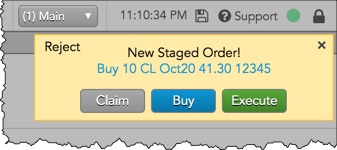
When you click Execute in the pop-up, the care order is claimed and a child order is submitted based on the care order parameters. When you click Buy, the care order is claimed and an Order Ticket opens seeded with the care order parameters. The options to “Buy” or “Execute” are displayed when the “Manage staged orders without claiming” order permission is enabled for the account or user in Setup.
Note: To cancel the care order without claiming, click “Reject”. To simply ignore the alert, click “x” in the upper right corner of the pop-up alert.
Submitting child orders with a clearing account override
Your administrator can create a clearing account in Setup that is sent to the exchange for the account or order profile that you select when submitting child orders. If the “Client Can Override” setting is enabled for this account, you can enter a different clearing account in the “Exchange Clearing Account” field in the Order Ticket or MD Trader.
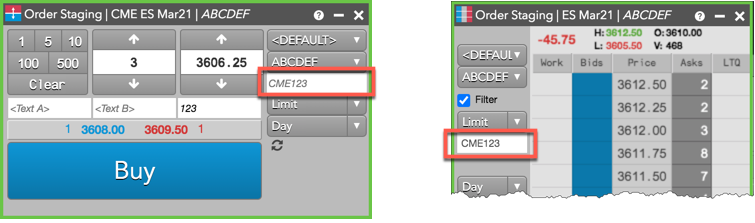
This field is optional and can be shown by enabling the Show Exchange Clearing Account edit box setting in Preferences | Orders. The default value is the clearing account override name configured in Setup for the selected account or order profile. If “Client Can Override” is disabled for the clearing account, the edit box is grayed out.
Submitting multiple child orders with the same algo
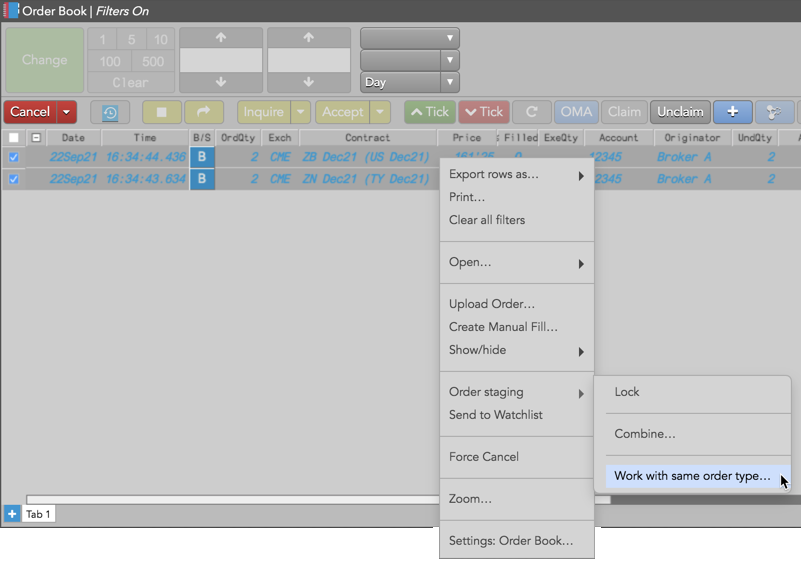
In the Order Book, you can select multiple parent care orders, apply the same algo or TT Order Type, and submit the related child orders using a single order action.
To submit multiple care orders with the same algo:
- Select one or more parent care orders in the Order Book.
- Right-click and select Staging | Work with same order type in the context menu.
- Select an algo or TT Order Type in the Order Ticket.
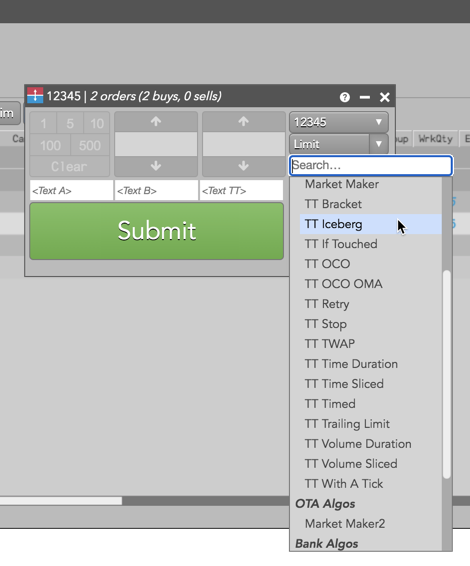
- Configure the algo or order type parameters and click Submit.
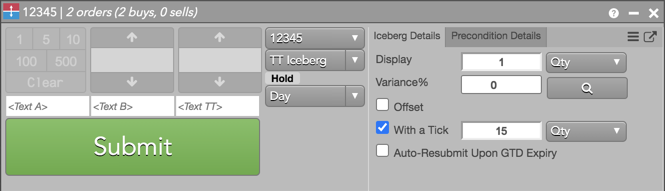
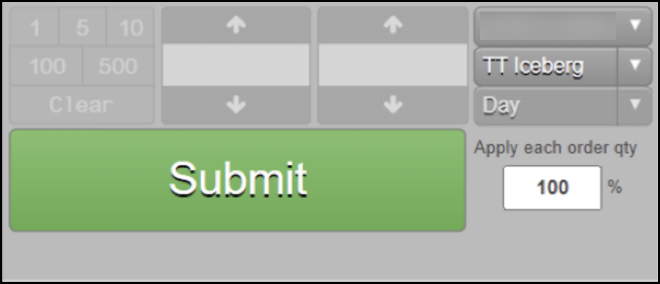
You can apply a percentage to the quantity of each selected order to work multiple different TT Order types.
Note The percentage is entered as an integer value from 1 to 100.
- Review the orders and click Confirm Submit.
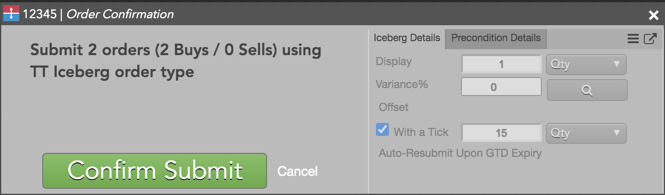
The child orders are submitted for each care order selected in the Order Book.
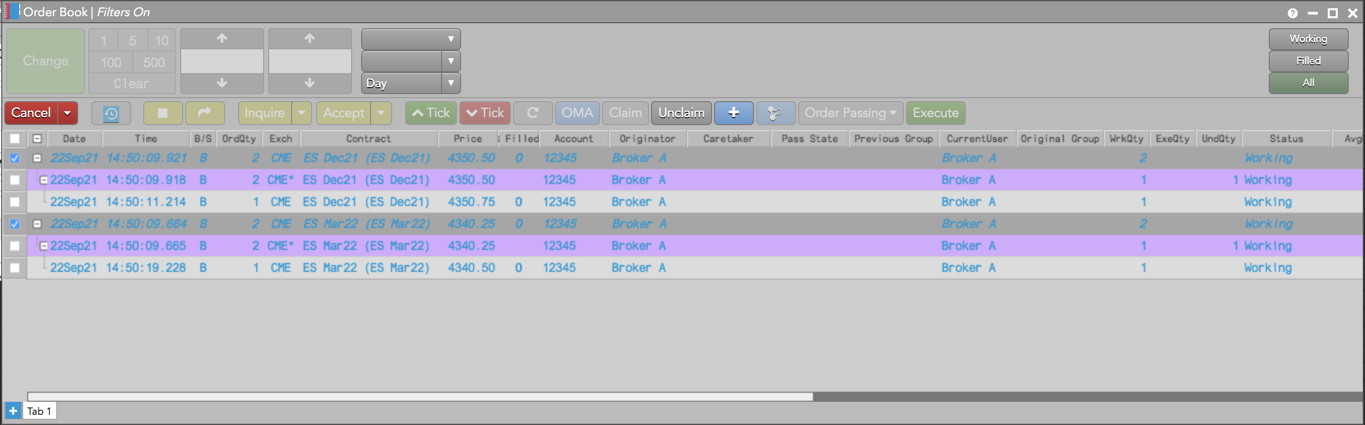
Working with Same Order Type Across Staged Orders
The Work with same order type feature is designed to manage staged orders efficiently:
- Mapping Order Parameters: Order parameters [including order type, account, and LTP (Last Traded Price)] from each selected staged order are mapped to the resulting child orders.
- Handling Different Accounts and Order Types: If the selected staged orders have different accounts or order types, the relevant drop-down controls will seed as empty (“”). If an account or order type is not manually selected, each child order will inherit the account and order type from its respective staged order.
- Applicable to All Order Types: These behaviors apply to all native and algo order types, including both TT and third-party algo orders, when using this feature.